


Objectives
Create a simple desktop with a window and define a shortcut icon that points to the window using WebDesktopManager Designer.
-
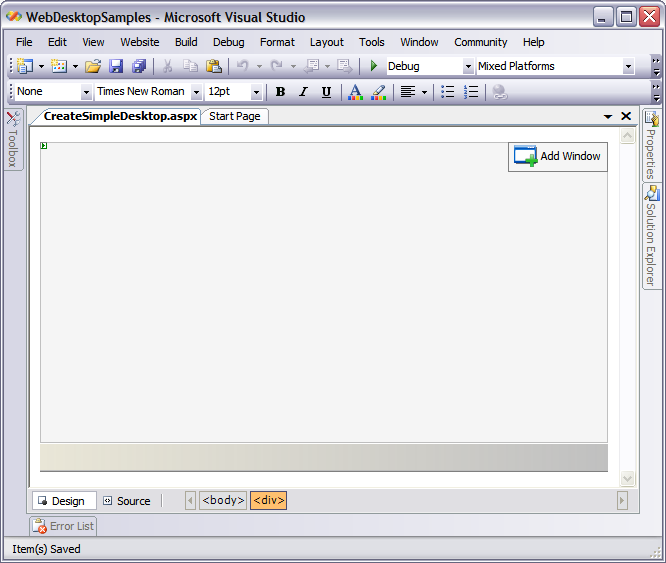
Drag the WebDesktopManager component from the Toolbox and drop it onto the form. Remember to remove the DOCTYPE declaration and the html tag's xmlns attribute from the form before doing this.
-
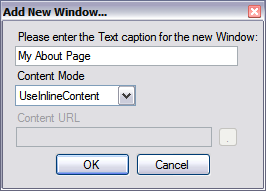
Click the Add Windows button in the upper-right corner. Then enter 'My About Page' for the new window's text and set the Content Mode to UseInlineContent. If you would like to use a stand-alone Web page for the window content, select UseIFrame for the Content Mode.
-
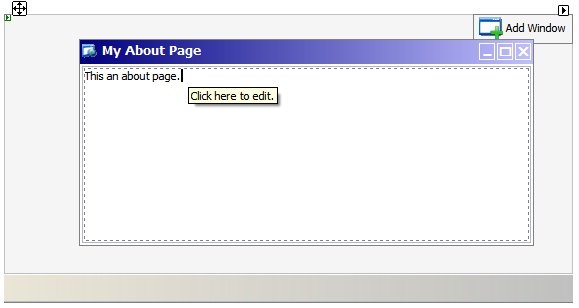
A new window is created in the WebDesktopManager. Note that you can directly type the page content in the new window.
-
Next, using the WebDesktop Designer we will create an icon shortcut that points to the 'My About Page' page.
-
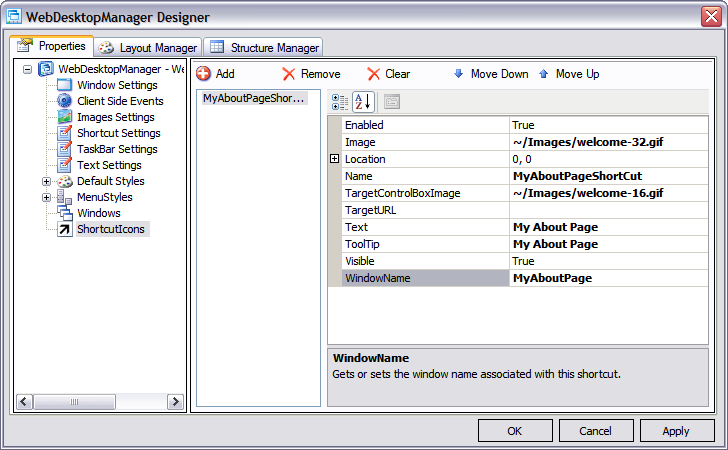
Right-click on the WebDesktopManager and select 'WebDesktopManager Designer...' from the menu. Click on the ShortcutIcons node which is the last node in the treeview and click the Add button to add a shortcut icon. Fill in the property grid fields according to the following screenshot and click OK.

We set MyAboutPage for the WindowName because we have added a new window with that name in previous step. If you choose not to create a window for the page, you can specify the TargetURL instead. This will open a window with the TargetURL as its content.
-
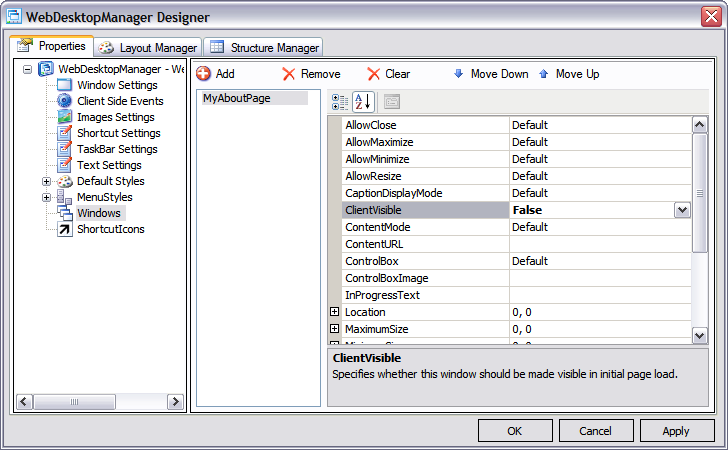
Select the Windows node and MyAboutPage item from the listbox. Set the ClientVisible property to false to make the windows not visible the first time the desktop loads.
-
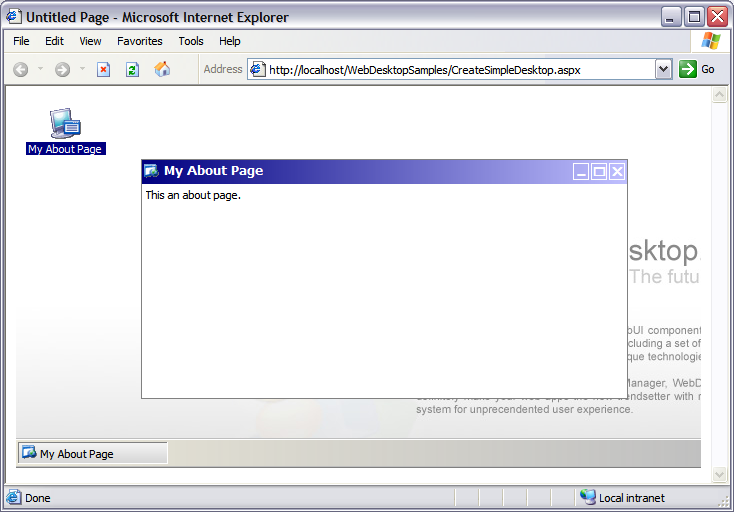
Run the page and then click the 'My About Page' shortcut icon.
 See Also
Related Articles
Using IFrame as Default Content
{Enabling ShortcutIcons feature}
Hiding a Window at initial load
{Using Window Options}
{Using Custom Template for Left and Right part of TaskBar}
Specifying Custom Location for a Window
{Specifying Minimum and Maximum Size for a Window}
{Configuring Window to use Complex Images}