


Objectives
WebDesktopManager gives you the flexibility to customize each window appearance just like in WinForm development. Some properties you might be familiar already include AllowMinimize, AllowMaximize and AllowClose which control the basic behavior of the window.
The WebDesktopManager provided WindowSettings property which contains the default configuration of all Window behaviors. When the properties at Window level are set to Default, the designated property will inherit the value from the WindowSettings.
You can of course override each window property so it does not use the Default parent property but use its own overridden property. This OO approach is not just so you can conveniently change/modify the whole window appearance from one integrated place but it also gives lighter page in result.
- Create a DesktopManager instance by dragging a WebDesktopManager component from ToolBox to the Design Surface.
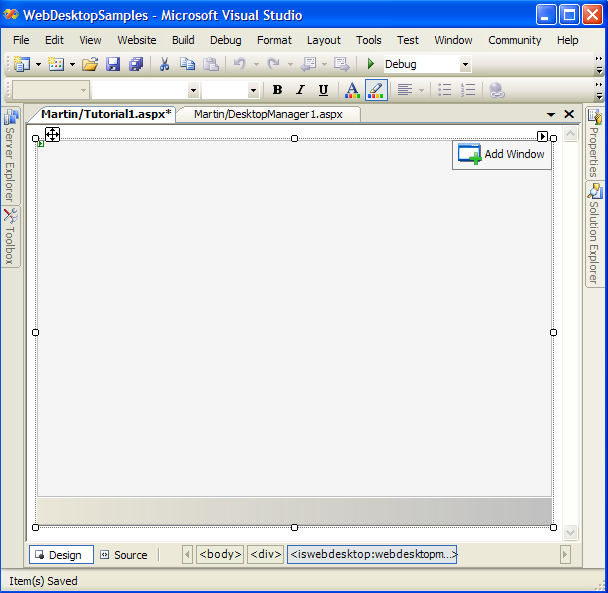
- Select the DesktopManager instance by pressing F4 from your keyboard so that the property grid appears.
The property of the DesktopManager instance will be displayed in the property Grid.
Look for WindowSettings property and then set the property behavior which will be inherited by the windows owned by the Desktop Manager instance.
- Add 2 windows using the Window Collection Editor by navigating to Windows property of WebDesktopManager instance. Press the button with "..." text
and a pop-up form will appear. Add 2 windows there and set the AllowMinimize to Yes in the second Window.

- The final result should look like below. At DesktopLevel the WindowSettings are set to have No Minimize and Maximize button.
So by the default when a window is created it will have no Minimize and Maximize button unless the default value in the window itself is overridden. Here Window2 overrides the AllowMinimize to Yes instead of Default so it now has a minimize button.
 See Also
Related Articles
{Creating Simple Desktop}