


WebPaneManager offers time-saving and innovative features listed in the following:
- Rich Design Time experience
WebPaneManager makes it possible for you to design and develop your rapid web application the same way and manner as in WinForm IDE. WebPaneManager implements ClickAndEdit and ClickAndSelect technologies to deliver this time-saving and elegant architecture to life. See following screenshot for more details.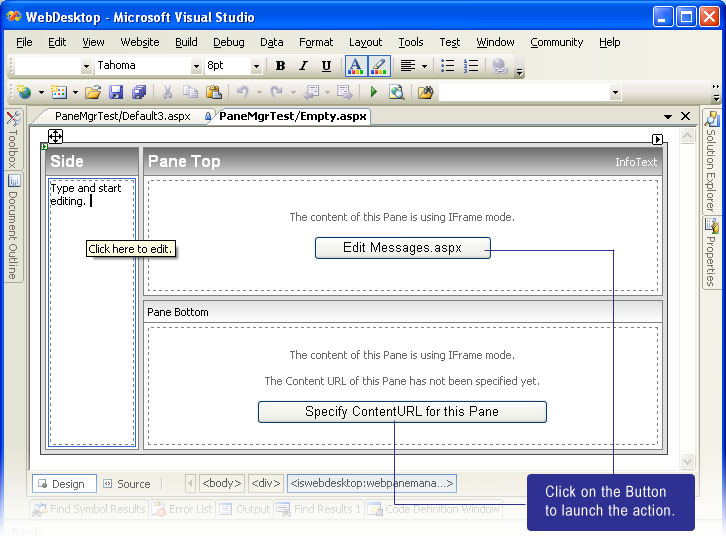
With this new level of design time experience, you can develop rich form application efficiently, effectively and quicker than ever before.
- TrueFill Layout
TrueFill is a new technology introducing a new way of creating complex Layout in less effort by automating common layout tasks as well as automatically adjusting incorrect dimension values to produce consistent and extensible layout. TrueFill will also prevent your layout to have "vacuum gaps" as the results of unspecified or incorrectly specified dimension. See following image for more details.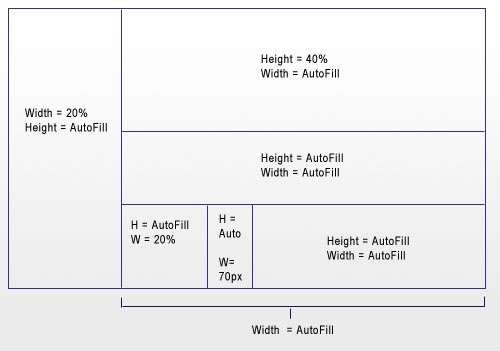
As you can see in above diagram, TrueFill allows you to configure such complex layout by simply specifying the Pane which dimension needs to be customized. Other Panes will have its Width and Height set to Auto and does not require you to calculate or specify the rest values.
TrueFill automatically manages following layout scenarios: -
- All Auto dimension.
- Width/Height with combination of Auto and Percentage.
- Width/Height with combination of Percentage and Pixel.
- Width/Height with combination of Auto, Percentage and Pixel.
When used in combination mode, WebPaneManager will automatically determine the dimension values for Panes which set to Auto. The automatic calculation will take into account the other Panes which used absolute dimension (pixel) and percentage dimension.
- Nested Layout Grouping in strong object model
WebPaneManager is built with strong object model and clear separation between Group and Pane to enable nested Layout Grouping to be shown in consistent fashion. With the object model, it opens the possibility for developers to add a Pane or create the Layout dynamically from code behind as well as saving the Structure into a XML file and load it later.
For more information about Group concept, please see Understanding Concepts.
- AllowCollapse and AllowResize
Two of the most useful features in WebPaneManager are the capabilities which allow users to resize the dimension of Pane at runtime. The resizing works in conjunction with TrueFill architecture which intelligently determines the target size and convert the value back to the original unit type. When a Pane is resized, it will resize the other pair of the Pane and extend its dimension properly. The resizing however, will not affect other Panes or other Group's dimension.
The other useful feature is the AllowCollapse which adds the capability for users to collapse a Pane into specified direction. With AllowCollapse, you can easily let your users to maximize the layout to use available screen real estate which dramatically enhance the user experience resulting in greater productivity.
For more information, please see Splitter Integration.
- Automatic Resizing
When configured to use percentage Width and Height (default is 100%), WebPaneManager with its TrueFill™ architecture will be able to resize its size along as the available Panes automatically responding to the current Window's size. With this Automatic Resizing, you can build rich web application that behave exactly the same as in desktop application where the layout can be expanded or shrinked as needed (resolution independence). When the layout shrinked to the size and the content of the Pane exceeds the boundaries of the layout, a scrollbar in the Pane's content will appear. See following for more details.
Before Resized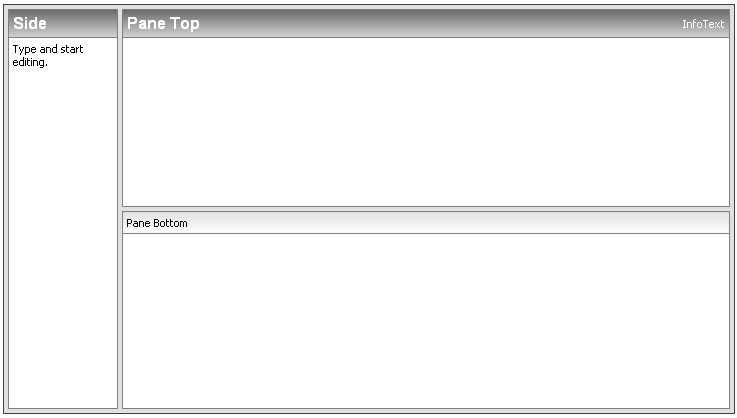
After Resized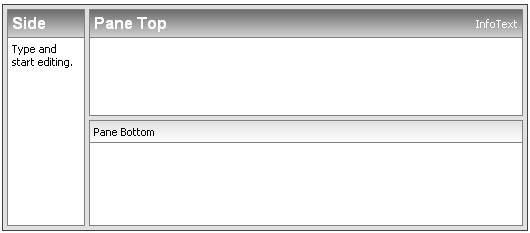
- Component Designer
Instead of changing properties in Visual Studio Property Window, you can configure most properties shown in "logical group" from WebPaneManager Component Designer. You can easily manipulate the global PaneSettings, Styles, as well as changing properties of Pane inside RootGroupPane.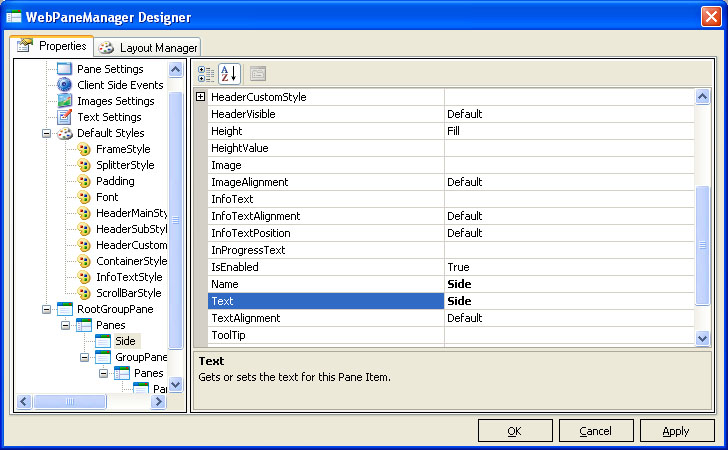

Most Intersoft's components that exposed rich functionalities, complex objects and collection would implement Component Designer similar to the screenshot above. The consistency of the user interface and functions throughout all Intersoft's components would significantly reduce learning time as well as increasing productivity. - Visual PaneManager Designer (Advanced)
Visual PaneManager is an advanced designer for WebPaneManager which lets you easily and quickly design layout in WYSIWYG fashion. With this time-saving feature, you can conveniently design complex layout from either scratch or predefined template. The predefined template feature makes it possible for you to construct a complex layout in 1 click away. See following screenshot.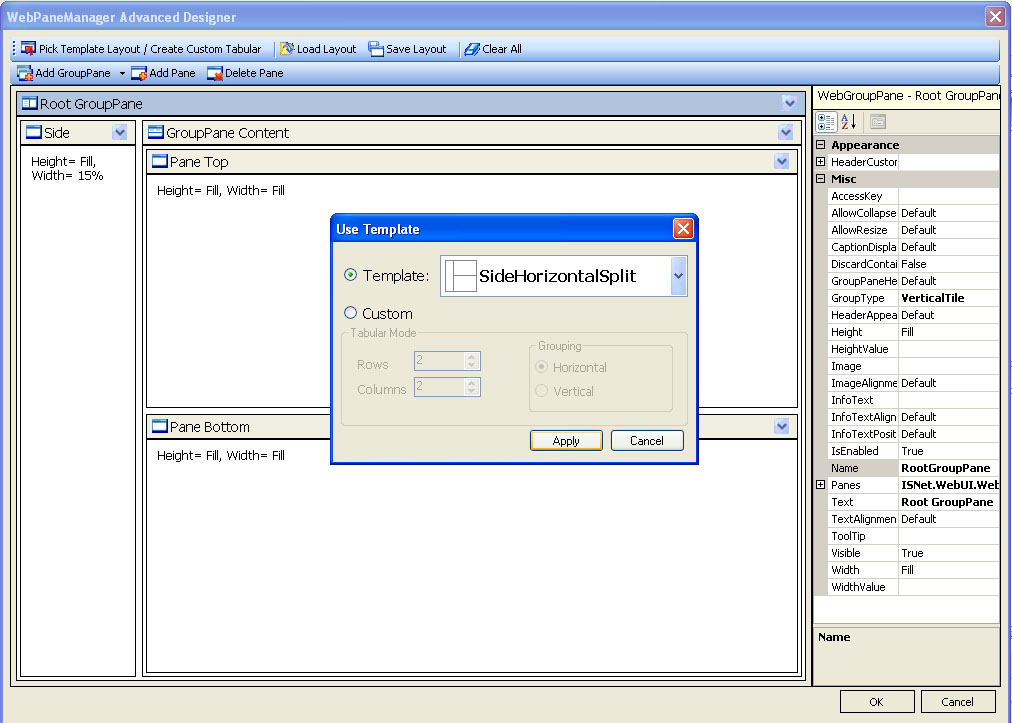
Visual PaneManager also makes Panes manipulation a breeze, such as adding new Pane to its next sibling, converting a Pane into GroupPane without losing its properties, adding or removing Pane or GroupPane, moving Pane around the same group and more.
For more details on Working with Visual Editor, please click here.
- Three Predefined Global Header Styles
WebPaneManager allows you to define up to three global header styles to be applied to individual Pane. This approach has numerous advantages, such as, producing consistent styles of Pane in the PaneManager control. Furthermore, you will only need to define the styles once and reuse it easily in the Pane level by specifying its HeaderAppearance property.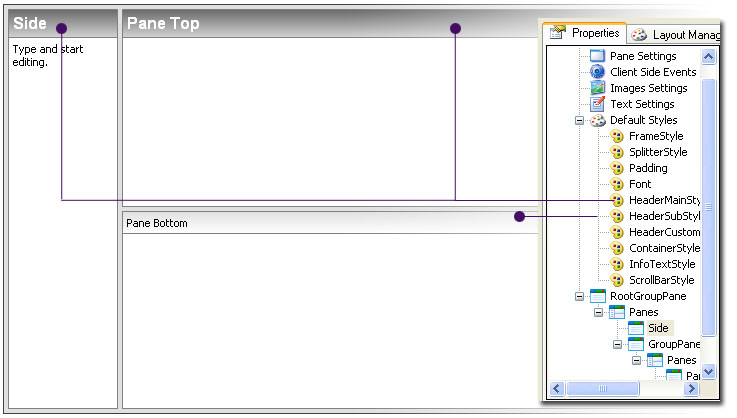
In the above screenshot, the Side and PaneTop Pane are using HeaderMainStyle for the HeaderAppearance. The PaneBottom is using HeaderSubStyle. Both styles are defined at Global level so that changes to the style will automatically be applied to Pane that used it.
- IFrame ContentMode
By default, the WebPaneManager will operate in "UseInlineContent" mode when a new instance is dropped to designer surface. UseInlineContent is the most suitable when the contents inside each tab page are relatively small. You can also determine the "content load" by inspecting the performance during page load as well as the size of the output. UseInlineContent mode utilized .NET Framework's Templating archictecture and therefore all contents are loaded at once in first load (although the inactive pages are set to hidden).
In most cases where you want to develop a more reusable form, you should use UseIFrame for the content mode. When using IFrame mode, you would need to specify the ContentURL which page you want to load for the designated Tab item.
The ContentURL accepts three formats of URL:
1. .NET specific application relative URL. This format starts with "~" character, for instance, "~/FolderA/Page1.aspx".
2. Absolute URL. This format starts with "/" character, for instance, "/SharedModule/Page1.aspx".
3. Relative URL. This format usually starts with "." character or no special characters (which assume the page can be found in the current folder's context).

You can configure different ContentMode for each WebPane. To apply all WebPane to use a specific ContentMode, configure the ContentMode in WebPane control level and leave WebPane's ContentMode to Default.
- Advanced IFrame-related Features
WebPaneManager introduced several advanced features related to IFrame (that is when ContentMode is set to UseIFrame). These advanced features are:- IFrameAllowTransparency. The Default value is True.
When set to True, the IFrame will show the background color specified in ContainerStyle instead of the background color in the page specified in ContentURL. This feature will produce better consistency of the user interface and appearance, without having to configure background color of each webform.
- IFrameAllowTransparency. The Default value is True.
The webform specified in ContentURL must have its bgColor set to transparent. For instance, <body bgColor="transparent">
- IFrameShowLoader. The Default value is True.
When set to True, the WebPaneManager will display an animated image and text indicating that the Page is currently in loading progress. This feature is helpful when loading a relatively large page and still keep informing the user of the loading progress.
 See Also
Related Topics
{Overview}
{Understanding Concepts}