


WebNotification component offers unique innovations and advanced features such as listed in the following.
- Asynchronous notifications retrieval
WebNotification used FlyPostBack technology (a.k.a. AJAX) to perform communication with server side in order to obtain Notifications data. The asynchronous approach is crucial for smooth and uninterrupted user experience. This feature is built-in and does not require you to perform additional configuration.
- Service types
Offers two methods that you can choose for the client/server communication purpose:
- WebForm ServiceType.
This is the default value for ServiceType property. WebForm mode is recommended when the data provider is private and does not need to be exposed. With this mode, you need to set the WebForm (aspx) page which the control will invoke. You can set the ServiceUrl to either the current caller page or another WebForm page in the application.

The best practice for WebForm ServiceType is by assigning the ServiceUrl to another WebForm page which especially created to serve the notifications purpose. With this flexibility, you are no longer restricted to call the self current page which exposes performance issues and ineffective codes design. - WebService ServiceType.
This type allows you to retrieve Notifications data from a web service (asmx) page. When set to this mode, you set the ServiceUrl to the web service page containing the method required by WebNotification control.
The WebService mode is the recommended data provider setting when the methods need to be exposed for other usage.
Note that both WebForm and WebService have similar method signature and returned object type. This allows you to easily switch between WebForm and WebService as necessary in certain phase of development.
- Elegant object model and API
WebNotification is designed to be easy to consume by developers from any background. Unlike other similar controls, WebNotification provides a set of strongly-typed object model as the data backbone for client/server communication.
The central of the architecture is the WebNotificationEvent object which contains the information required by WebNotification control to receive new notification events.
The following sample shows the object model usage in WebService mode.
Expand Sample

While the data communication is using strongly-typed object model which benefitting developers, the WebNotification sent the object result back to client in XML Format to ensure high performance and smooth user experience. - Visual effects
WebNotification includes two predefined animation for visual effects: Fading and Sliding.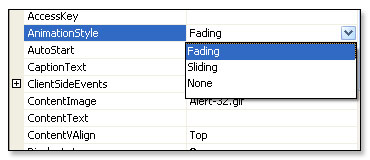
When set to Fading, the WebNotification window will be displayed (fading from transparent to opaque). The animation speed can be set in FadingSpeed property. The Fading mode resembles the Outlook 2003® animation's style and behavior.
The Sliding mode resembles the MSN Messenger® animation's style and behavior where notification window will be slided from bottom to top.
- WebDesktopManager integration
The web application development that built around WebDesktopManager has a lot of advantages for developers, in addition to the definitive benefits for end users experience. The WebDesktopManager is designed with extensibility as a key goal in mind to serve the purpose of universal shell. With a single property set, you can set the WebNotification control to be integrated into the WebDesktopManager instance which hosts the WebForm.
When integrated, the notification popup window will be displayed at desktop level instead of current Window. This feature enables end users to conveniently access to the notification popup regardless of the active Window.
The display position of the notification popup window is set to RightBottom by default (as in most modern applications). You may want to change the display to other position by changing the DisplayPosition property.
- Built-in Action context menu
Action context menu provides a way for end users to access a list of available actions and perform an action against notification event. The Action context menu takes advantage of Hybrid Menu architecture and Visual Menu Builder for design consistency and enhanced integrated development experience.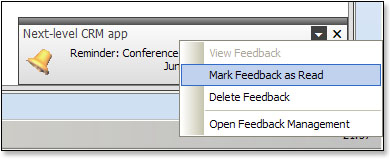
To enable action context menu, simply set the ShowActionDropdown to true then defines the menu items. You can also manipulate the action menu items programmatically at client side, such as during OnActionClick client side event.
- Clickable notification window
WebNotification includes built-in capability for setting the popup window as clickable when the notification popup window appears. With this handy feature, you can redirect the users to other page when the control's window is displayed due to a notifiy event. For instance, you may want to launch the Mail Inbox home page when users clicked on the new email notification event.
To enable clickable window, simply set the NotifyWindowClickable to True. You would also need to set the corresponding URL in the NotifyWindowURL property.
- Full control on interval, display timeout and behavioral settings
You can customize many runtime aspects and behaviors on how you want the WebNotification to behave, in addition to the fully customizable styles. For example, you can change the Interval property to specify how often the control should check for new notifications. The DisplayLatency property allows you to control how long a notification window should stay visible to the user.
Other behavioral settings that you should consider: - Sound effect
WebNotification includes unique innovations which are not only enabling developers to easily create visually stunning notifications system, but also the built-in capability to play a sound file when valid notification events occur. This unique innovation allows you to deliver a sophisticated web application that resembles a desktop system.
To enable sound, set the EnableSound property to True and set the SoundFile property to a valid sound file URL. A valid sound file should be one of the following extensions: -
- .wav
- .midi
- .au
The sound effect feature works in Internet Explorer browsers without any extra efforts. However, this feature requires Sound System plug-in for Mozilla-based browsers to work properly.
- Object collection-based custom properties
WebNotification is built to cover some advanced scenarios which would commonly be faced by developers while building complex web application. One of the scenarios is the ability to pass custom properties along with the notification event to the client side.
For instance, you may want to send the RowID along with the notification event so you can get the ID in the client side and perform further extensibility. In WebNotification, you can send custom property easily in collection-object friendly approach. WebNotification used Dictionary based type and is able to be serialized perfectly into XML Format.
The following codes snippet demonstrates how you can pass the EmailID value along with the notification event.
WebNotificationEvent
evnt = new WebNotificationEvent();
evnt.CaptionText =
"Samples: Outlook 2003";
evnt.Properties["EmailID"] = emailObj.ID;
 See Also
Related Topics
{Overview}
{Understanding Concepts}