Introduction
The WebDesktopManager implements Shortcut system as one of its essential user interface element in order to represent a high-end Desktop component.
A Shortcut typically represents a module or application that can be quickly accessible by users by simply double clicking on it. In traditional web application development, developers usually include available modules in navigation system such as Top-side Menu or Left-side Collapsible Panel. This new Shortcut system implementation in DesktopManager enrich the existing navigation system by bringing the user-friendly concept of a Desktop into web application development.
More Details
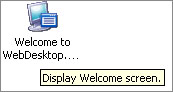
A shortcut element in WebDesktopManager is represented as an Image and Text. The shortcut is selectable when clicked or navigated through keyboard arrow keys. A shortcut oftenly has ToolTip as well when the mouse is over the visible Image or Text area.
The following shows an illustration of a shortcut in WebDesktopManager.
At the component implementation, shortcuts are represented in ShortcutIcons collection. Each shortcut is represented with WebDesktopShortcut object.
A WebDesktopShortcut object includes important properties related to a Shortcut system, such as its Image, Text, ToolTip and what module that the Shortcut should launch when doule clicked. The following shows a detailed picture of ShortcutIcons hierarchy and important properties available in WebDesktopShortcut object.
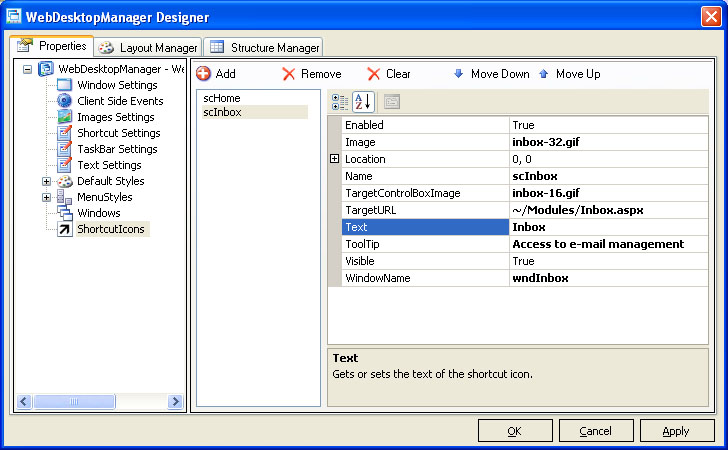
The following table describes the function of available properties shown in above image.
| Property Name | Function |
| Enabled | Determines whether the shortcut is enabled or disabled. When set to False, the shortcut will not be selectable or clickable. |
| Image | A valid URL path represents the Image used for this shortcut. Typically, a transparent GIF image with 32x32 size is the most recommended Image. |
| Location | The location of the shortcut. When specified to a coordinate other than Empty (0, 0), the Shortcut will be displayed at the specified coordinate in the Desktop. In this case, the specified Shortcut will not be automatically arranged by DesktopManager. |
| Name | The name of the shortcut. It is recommended that you specify a short and descriptive name which corresponds to the Text. For instance, scInbox or scEmail. |
| TargetControlBoxImage | A valid URL path represents the Image used for the target Window's ControlBox. Typically, a control box image is best using transparent GIF with 16x16 size. |
| TargetURL | A valid URL path represents a WebForm Page to be accessed when the shortcut is launched. You may leave this property to Empty if the shortcut is designated to launch an existing Window (such as hidden Window). |
| Text | The text of the shortcut displayed in Desktop area. |
| ToolTip | The tooltip of the shortcut. |
| Visible | Determines whether the shortcut should be visible in Desktop area. |
| WindowName |
The Window name associated with this shortcut. This property must be specified in order for the shortcut to be able to activate existing Window. It is also recommended that you assign the WindowName accordingly to the Text and the Name of the shortcut. For instance, wndInbox or wndEmail. |
Features and Styles
By default, the shortcut element is not enabled in DesktopManager when the first time you create it in design time. You can easily enable this feature by configuring ShortcutIconsVisible property to True.
In this release, there are two configurations related to shortcut's behaviors such as presented in following table.
| Property Name | Function |
| AllowAutoArrange | Specifies whether the shortcuts should be automatically arranged and managed by DesktopManager. The default value is True. |
| Movable | Specifies whether the shortcuts are movable by users at runtime. The default value is False. When this property is set to True, the shortcuts which have been moved by users will not be automatically arranged by the DesktopManager eventhough AllowAutoArrange is set to True. |
 |
The above configurations can be accessed in ShortcutSettings property under WebDesktopManager control. |
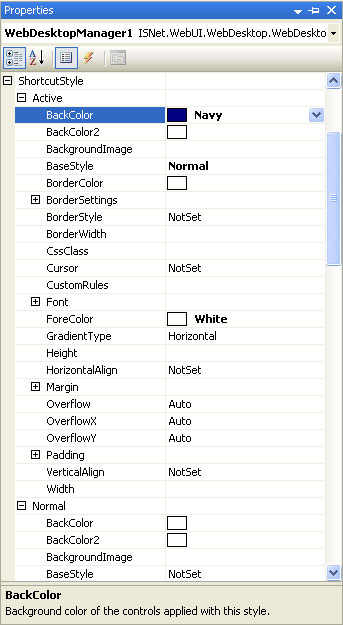
You can also customize the interactive styles of the shortcut such as the Normal, Over and Active style. The interactive styles customization enables you to create professional and great looking DesktopManager toward your user's requirements. The following shows the property list for the ShortcutStyle.