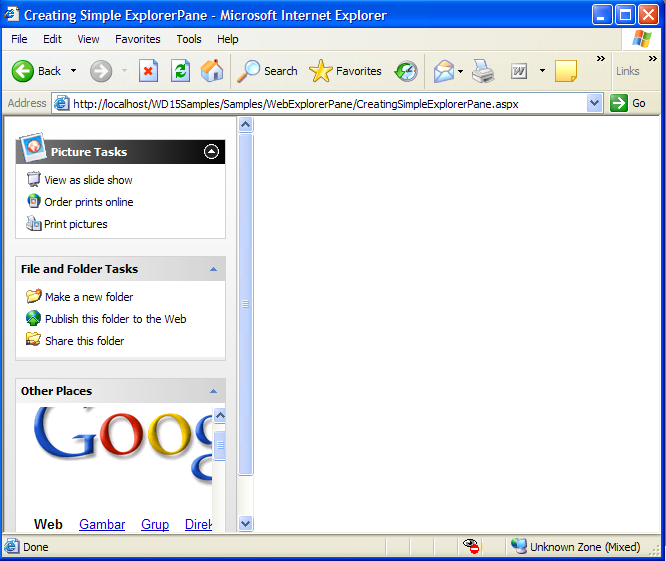
Objectives
This tutorial demonstrates how to create a simple ExplorerPane using WebExplorerPane Designer. There are 3 modes for the content which are UseItems, UseInlineContent and UseIFrame.
- Drag WebExplorerPane from Toolbox into a WebForm page.
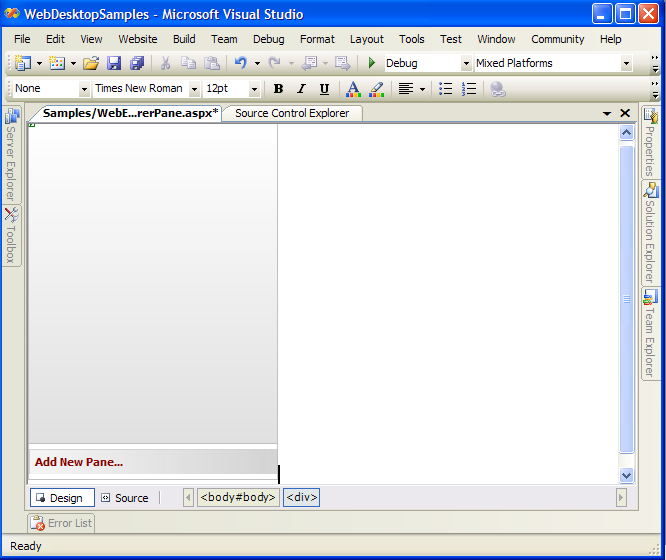
- Right-click on the WebExplorerPane and choose WebExplorerPane Designer.
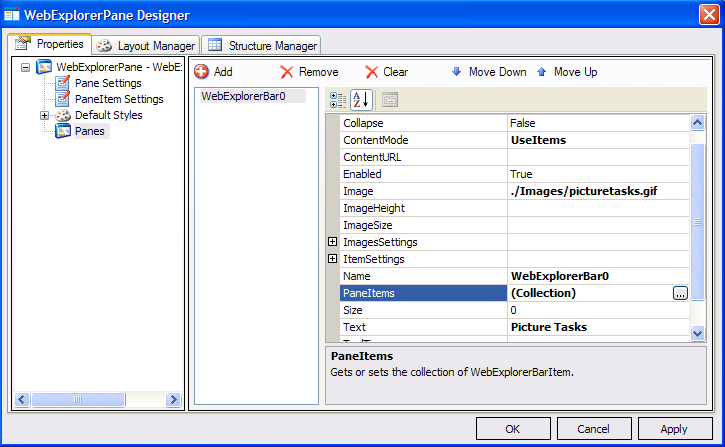
- In the designer, choose Panes. Set ContentMode to UseItems, CaptionDisplayMode to
TextAndImage and set the Image URL.
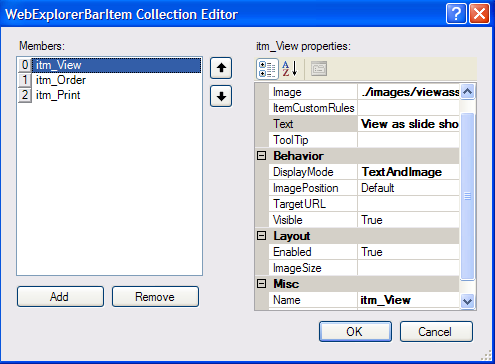
- Click PaneItems (collection) and the WebExplorerBarItem Collection Editor dialog appears.
- Set the bar Items respectively like the following snapshot. Now, you have learned how to create an explorer bar with UseItems as the
ContentMode.
- Go back to WebExplorerPane Designer. Add a new WebExplorerBar and set ContentMode to UseInlineContent.
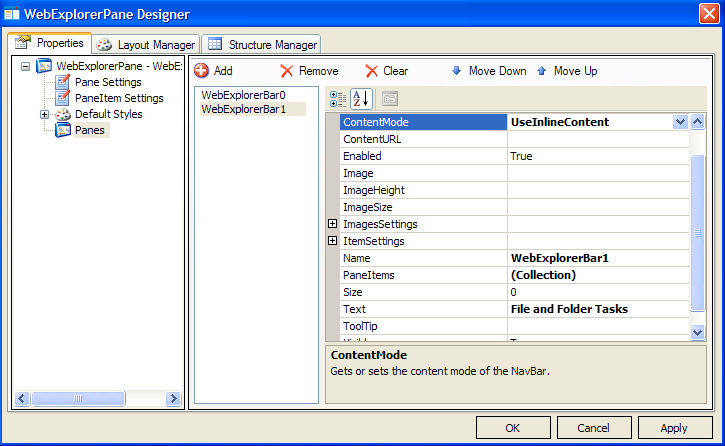
- In the HTML code, add the following code-snippet under ContentTemplate:
Script  Copy Code
<ISWebDesktop:WebExplorerBar ContentMode="UseInlineContent" name="WebExplorerBar1"
text="File and Folder Tasks">
<ContentTemplate>
<table style="margin: 3px">
<tr>
<td>
<img src="Images/newfolder.gif" />
</td>
<td>
Make a new folder
</td>
</tr>
<tr>
<td>
<img src="Images/publishthisfolder.gif" />
</td>
<td>
Publish this folder to the Web
</td>
</tr>
<tr>
<td>
<img src="Images/sharethisfolder.gif" />
</td>
<td>
Share this folder
</td>
</tr>
</table>
</ContentTemplate>
</ISWebDesktop:WebExplorerBar>
- Now, you have learned how to create an explorer bar with UseInlineContent as the ContentMode.
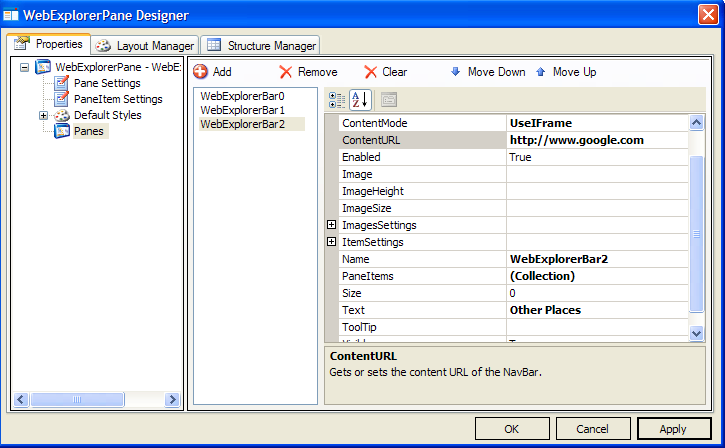
- Again, go back to WebExplorerPane Designer. Add a new WebExplorerBar and set ContentMode to UseIFrame and
ContentURL to http://www.google.com like the following snapshot.
- Run the project and you will see something like following.