


Objectives
To create Outlook 2003 Style Layout using WebPaneManager is fairly easy. Outlook 2003 style is very popular because its convenient layouting and sizeable panes.
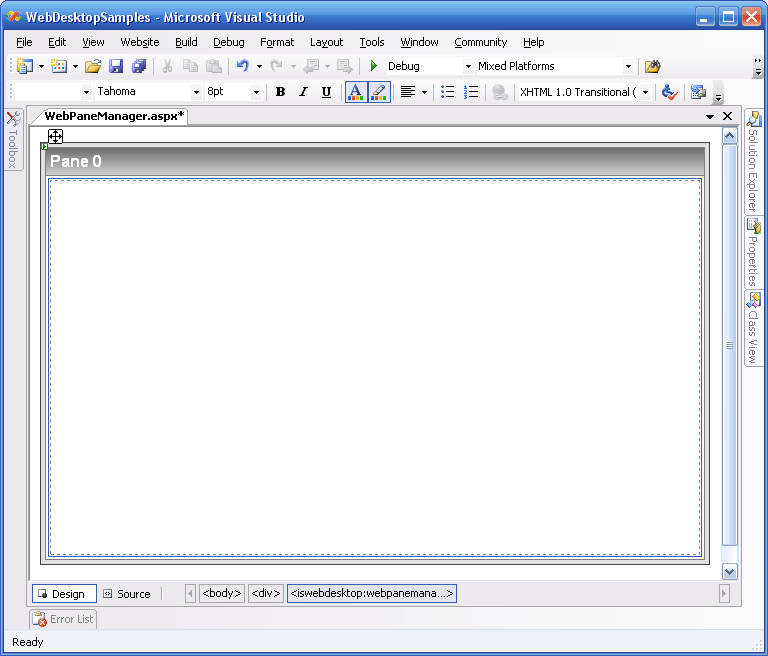
- Drag the WebPaneManager component from the Toolbox into the WebForm.
Remember to remove the DOCTYPE declaration and the html tag's xmlns attribute from the form before doing this.
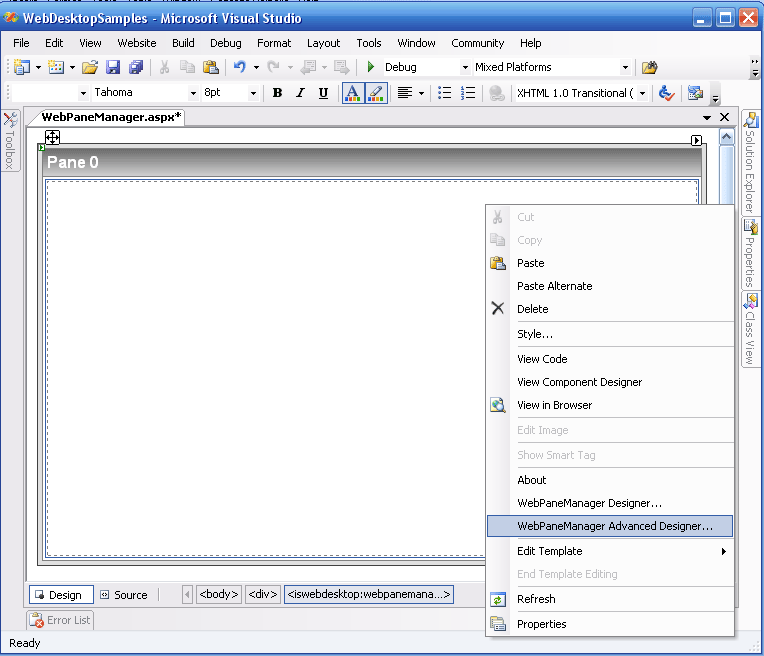
- Right Click on a WebPaneManager instance and choose WebPaneManager Advanced Designer.
- Use the WebPaneManager Advanced Designer to configure the appearance resembling the style below:
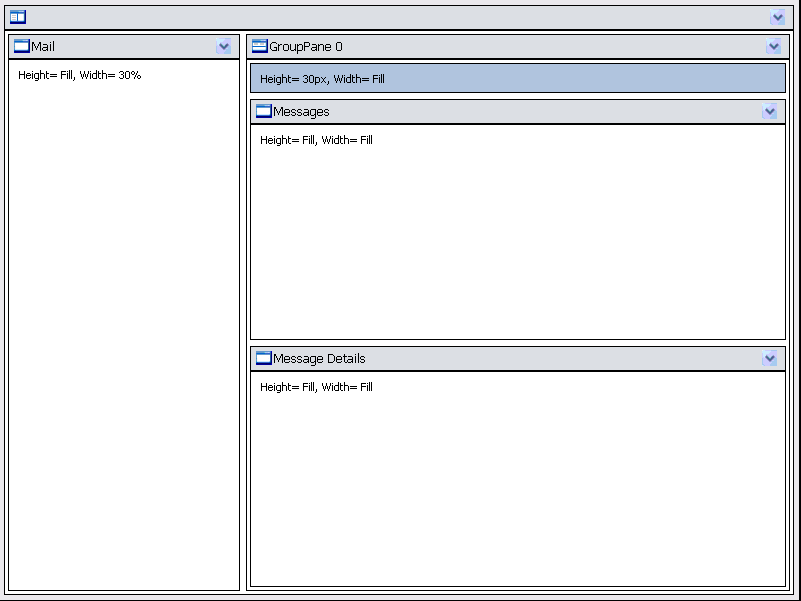
- Basically, what we are trying to do is to layout so there will be 3 main panes which are Mail, Messages, MessageDetails. However, we also need a "No Header" Pane above Messages Pane (the pane highlighted in the image above). This pane will be used as a place holder for frequently-used actions controls.
- Next, configure the "Messages" Pane ContentMode property as "UseIFrame", since we are going to need to refresh the Messages Pane when a hyperlink in "Mail" Pane is clicked.
-
Next, you will need to configure the ContentTemplate for "Mail" Pane, the desired result will be as below when viewed in source mode
C#  Copy Code
<ISWebDesktop:WebPane AllowCollapse="Yes" Name="paneMail" Text="Mail" Width="Custom"
WidthValue="30%">
<ContentTemplate>
<asp:HyperLink ID="HyperLink1" runat="server" NavigateUrl="Inbox.aspx" Target="paneMessages">Inbox</asp:HyperLink><br />
<br />
<asp:HyperLink ID="HyperLink2" runat="server" NavigateUrl="Empty.aspx" Target="paneMessages">Calendar</asp:HyperLink>
<br />
</ContentTemplate>
</ISWebDesktop:WebPane> - One thing to note here is you must not forget to set the Target of the Hyperlink to "paneMessages" as now the "Messages" Pane has been configured to use IFrame as its content
 See Also
Related Tutorials
{Creating Simple Layout}