


With this new feature, you can now build visually compelling design for your Web application's menu navigation. The complex images allow you to specify the images needed by the WebMenu to render the menu item. This enables you to build a pixel-identical menu design that is similar to today's modern designs such as Vista Explorer or Office 2007.
The complex images concept consists of three parts:
- Left
- Center
- Right
All parts' image should have exactly the same dimension especially the height to deliver consistent and reliable design.
 |
To enable complex images highlight, simply set HighlightMode property (inside MenuStyleSettings) to UseComplexImages. The complex images can be specified in the ImagesSettings of the MenuStyleSettings object. MenuStyleSettings is available in all UI components that implement WebMenu interface, such as WebContextMenu, WebToolBar, WebMenuBar and WebNotification. |
| Component's Tags |  Copy Code Copy Code |
<ISWebDesktop:WebContextMenu ID="WebContextMenu1" runat="server" ControlId="Page">
   <MenuStyleSettings BackgroundStripColor2=""
           BackgroundStripImage="o7_menu_strip.gif"
           MenuAnimation="True" MenuDropShadow="True" MenuWindowType="Normal"
           BackgroundStripWidth="26"
           IconCellWidth="25" HighlightMode="UseComplexImages">
       ...<Other Styles Here>
       <ImagesSettings OverCenter="o7_menu_oc.gif" OverLeft="o7_menu_ol.gif"
           OverRight="o7_menu_or.gif"
           ActiveIconCell="o7_icon_active.gif" />
      </MenuStyleSettings>
      <Items>
             <ISWebDesktop:WebMenuItem Name="mnuCut" Text="Cut"
             ImageURL="images/cut.gif">
             </ISWebDesktop:WebMenuItem>
             ...
      </Items>
</ISWebDesktop:WebContextMenu>
| |
Design concept illustration:
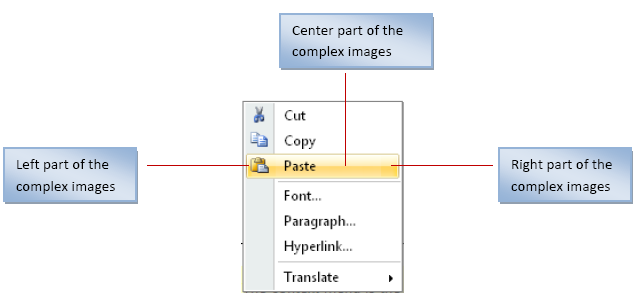
The layout, styling and rendering process is automatic based on the specified ImagesSettings. All you need is to provide the images needed by the complex images, and WebMenu will automatically arrange the layouting, margins, padding, repeating, edging, and other behaviors.