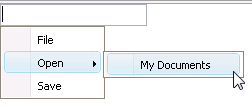
This walkthrough shows you how to enable complex images in WebContextMenu.
During this walkthrough, you will learn how to do the following:
- Use complex images in WebContextMenu.
- Set images to the WebContextMenu.
 Prerequisites
In order to complete this walkthrough, you will need the following:
- Visual Studio 2005 Application.
Step-By-Step Instructions
To enable complex images in WebContextMenu.
- Launch Visual Studio.NET 2005.
- Click on File menu, then select New and click Web Site.
- Select ASP.NET Web Site in the Template box and set Location to HTTP.
- Named the Web Site and click OK.
- Right-click on Project's name and select Add New Item.
- Select Intersoft AppForm in the My Templates box and named it as Walkthrough.aspx.
- Create images to be set to WebContextMenu's ImageSettings as the ActiveIconCell's image, OverCenter's image, OverLeft's image and OverRight's image.
- Create an image to be set as WebContextMenu's BackgroundStripImage. In this walkthrough, you will use vista_icon_active.gif as ActiveIconCell's image, vista_menu_oc.gif as OverCenter's images, vista_menu_ol.gif as OverLeft's image, vista_menu_or.gif as OverRight's image and vista_menu_strip.gif as BackgroundStripImage.
- Copy the images that you have created to the application folder.
- Drag a TextBox to the WebForm (used for WebContextMenu's controlID).
- Drag a WebContextMenu control to the WebForm.
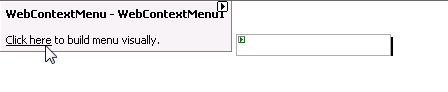
- Click the WebContextMenu's WebMenuBuilder to open the MenuBuilder window.
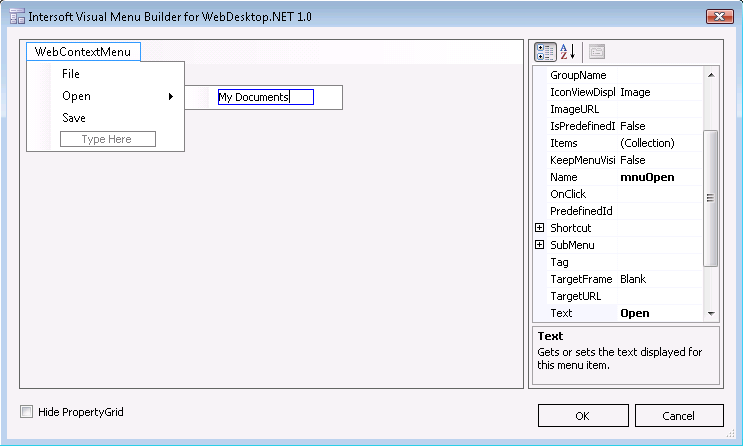
- Customize the menu like following:
- Go to WebContextMenu's properties >> MenuStyleSettings and set the following properties:
Property Name Value BackgroundStripColor 240, 240, 240 BackgroundStripImage vista_menu_strip.gif HighlightDisableItem True HighLightMode UseComplexImages IconCellWidth 27 MenuAnimation True MenuWindowType Normal
- Go to WebContextMenu's properties >> MenuStyleSettings >> ImagesSettings and set the following images:
Property Name Value ActiveIconCell vista_icon_active.gif OverCenter vista_menu_oc.gif OverLeft vista_menu_ol.gif OverRight vista_menu_or.gif
- Run the application and you will have a TextBox's ContextMenu like the following