


If you have a main WebToolBar in a page and an IFrame that has its own WebToolBar, you can merge both WebToolBar.
This topic will show you how to merge WebToolBar.
To configure ToolBar Merging
- Create a parent page, for example : ParentWindow.aspx.
- In ParentWindow.aspx, drag PlaceHolderManager from ToolBox into WebForm.
- Drag WebToolBar from ToolBox into the PlaceHolderManager. Set the ID property to WebToolBar1.
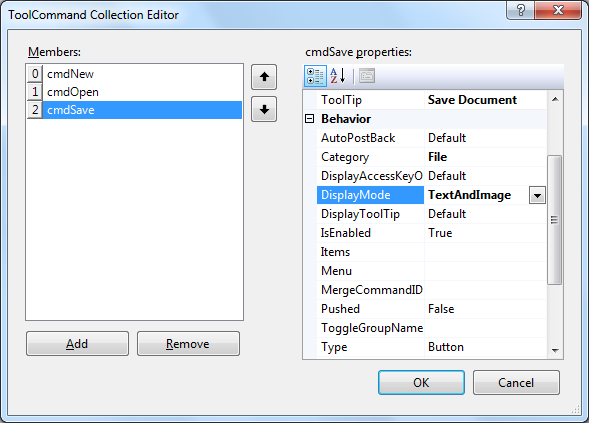
- In Commands property, add ToolCommand Collection in ToolCommand Collection Editor. Click here for further information on how to define a ToolCommand. Add three Button ToolCommand (New, Open, Save) in ToolCommand Collection Editor. Set the sequence of the ToolCommands like the screenshots below.
- In Properties window, set DockingArea property to Top.
- Create another page, for example : childWindow.aspx.
- In childWindow.aspx, drag WebToolBar from ToolBox into WebForm. Set the ID of the WebToolBar as WebToolBarChild1.
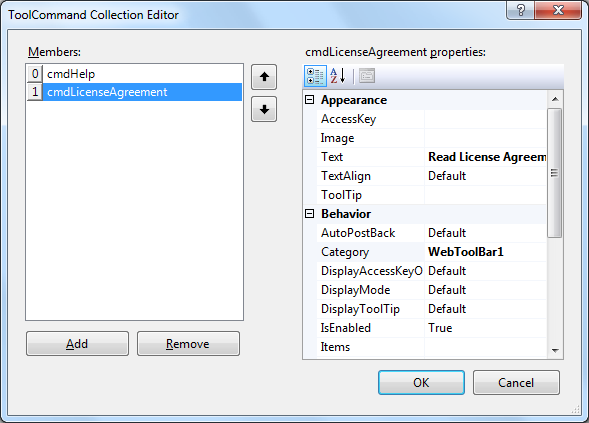
- In Commands property, add ToolCommand Collection in ToolCommand Collection Editor. Add two Button ToolCommand (Help, LicenseAgreement).
- In Properties window, set the MergeToolBar property to True.
- Go back to ParentWindow.aspx, add an IFrame and set the source property to childWindow.aspx.
<iframe src="childWindow.aspx" style="display: none;"></iframe>
- Right click on PlaceHolderManager control and choose Properties.
- Set EnableMergeBar to True.
- Run the project. The WebToolBar from another page (ChildWindow.aspx)is merged and added into the PlaceHolderManager in this Page.

 See Also
Related Articles
{Creating Dockable Toolbar}
{Configuring ToolCommand Toolbar Merging}