


Intersoft's WebUI navigation pane control, WebExplorerPane, has several unique features that will be explained below in details:
- CaptionDisplayMode
By default, the CaptionDisplayMode is set to "Text" mode when a new instance is dropped to .NET IDE designer. You can also have TextAndImage, Image, and UseTemplate for CaptionDisplaymode.
picture1 : Use TextAndImage as the Caption Mode
picture2 : Use Text as the Caption Mode


- Client Side Events
WebExplorerPane exposed numerous client side events that you can consume in order to create rich interaction and extensible web applications. Following is the list of available client side events:
- OnAfterCollapse
- OnAfterExpand
- OnBeforeCollapse
- OnBeforeExpand
- OnClientUnload
- OnInitialize
- OnPaneHeaderClick
- OnPaneItemClick
- Comprehensive Client Side OOP and API
As member of WebUI.NET Framework family, WebExplorerPane is extensively taking advantage of the client side framework enabling the same structure of object model between server and client side.
Additionally, WebExplorerPane provides comprehensive API for you to easily interact and manipulate the objects at client side (runtime). For example, you can perform Expand/Collapse at runtime by calling WebExplorerBarInstance.DoCollapse(). You can also programmatically get the WebExplorerBar collection or WebExplorerBarItems collection, show/hide PaneItems, animate pane height, and much more properties you can get to work at client side. For a list of complete WebExplorerPane API, please see "Client Side Reference >> WebExplorerPane".
- ContentMode
By default, the WebExplorerBar will operate in UseItems mode when a new instance is dropped to .NET IDE designer. UseItems is the most suitable mode to simulate Desktop style of explorer pane as it is a collection based and support text and image rendering mode. WebExplorerPane also supports UseInlineContent mode to utilize .NET Framework's template architecture and therefore you can drag and drop other controls onto it.
In most cases where you want to develop a more reusable form, you should use UseIFrame as the content mode. When using IFrame mode, you will need to specify the ContentURL which page you want to load for the designated WebExplorerBar.
The ContentURL accepts three formats of URL:
1. .NET specific application relative URL. This format starts with "~" character, for instance, "~/FolderA/Page1.aspx".
2. Absolute URL. This format starts with "/" character, for instance, "/SharedModule/Page1.aspx".
3. Relative URL. This format usually starts with "." character or no special characters (which assume the page can be found in the current folder's context).
 |
You can configure different ContentMode for each Pane. To apply all Panes to use a specific ContentMode, configure the ContentMode in WebExplorerPane control level and leave WebExplorerBar's ContentMode to Default. |
- Fully customizable styles and appearances
WebExplorerPane allows you to customize most of the elements' styles by using strongly typed WebStyle and DynamicStyle properties listed in following:
- FrameStyle
- SpecialBarStyle
- BarStyle
- BarFrameStyle
- ItemsContainerStyle
- ItemStyle
- WebExplorerPane Designer
Instead of changing properties in Visual Studio Property Window, you can configure most properties shown in "logical group" from WebExplorerPane Designer. You can also easily manipulate the styles, properties as well as managing the WebExplorerBar and WebExplorerBarItems.
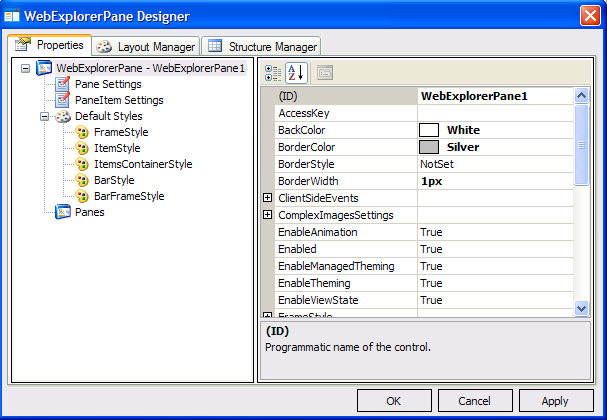
|
Most Intersoft's components that exposed rich functionalities, complex objects and collection will implement Component Designer similar to the screenshot above. The consistency of the user interface and functions throughout all Intersoft's components will significantly reduce learning time as well as increasing productivity. |
 See Also
Related Topics
WebExplorerPane
Concepts