


Introduction
WebDesktopManager brings the "universal shell" concept from Desktop to browser-based applications by introducing five essential user interface concepts. To achieve the objective of universal shell functions, WebDesktopManager extensively implements TaskBar element as one of its core user interface.
A TaskBar represents panel contains a list of open Windows which displayed in "Button" widget. The buttons of the open Windows are also called as TaskBarWindowButton. The TaskBar provides a convenient and quick access for the currently open Windows and also serve as centralized navigation system for desktop-style web application.
The TaskBar allows end users to easily switch between Windows by clicking on the TaskBarWindowButton. The click behavior of the TaskBarWindowButton has some built-in functions such as:
- Switch a Window to active when an Inactive Window is clicked.
- Minimize a Window when an Active Window is clicked.
- Restore or Maximize a Window when a previously minimized Window is clicked.
 |
The TaskBar reflects the open windows and manages the entire window system in real-time, so that any newly created window will be shown immediately in the TaskBar as well as closed Window. This also applies to window that dynamically created or closed through codes (API). |
Features
At the component design, the TaskBar element can be easily configured through one property, TaskBarVisible. By default, the TaskBarVisible is set to True when you instantiate a new instance at design time.
In this release, there are several configurations related to TaskBar that you can customize. The configurations can be found in TaskBarSettings property under the DesktopManager object.
The following table lists the available properties and its functions.
| Property Name | Function |
| Position | The position of the TaskBar relative to the Desktop client area. The default value is Bottom. |
| ShowWindows | Specifies whether the TaskBarWindowButton should be visible. The default value is True. When set to False, the open windows will not managed by the DesktopManager and will not be shown in the TaskBar. |
| WindowButtonSpacing | The amount of the spacing in pixel between each TaskBarWindowButton. |
| WindowButtonWidth | The preferred amount of the Width in pixel applied to TaskBarWindowButton. |
|
In this release, the TaskBar implements Automatic TaskBarWindowButton Resizing in conjunction with WindowButtonWidth property mentioned in above table. This built-in mechanism enables the Button's width to be automatically shrinked as more open windows are added. As opposed, when more spaces become available, the Button's width will be restored to the preferred width specified in WindowButtonWidth. |
Extensibility with Custom Contents
While the TaskBar features built-in management for the entire windowing navigation system, developers oftenly need to extend the TaskBar's functionalities by incorporating application specific features. One of the most common scenarios is by incorporating a "Start menu"-like control for centralized access to application's modules. The other scenario might be incorporating a "Quick launch toolbar"-like control for allowing users to access most frequently accessed application's modules.
These application-specific functionalities can be extended to the TaskBar by implementing your own custom contents in the provided Template which available under the DesktopManager instance.
In this release, WebDesktopManager provides two Templates that you can use to extend the TaskBar functionalities. The templates are:
- TaskBarLeftTemplate
This template allows you to incorporate your contents and functionalities to the left side of the TaskBar relative to the TaskBarWindowButton groups.
- TaskBarRightTemplate
This template allows you to incorporate your contents and functionalities to the right side of the TaskBar relative to the TaskBarWindowButton groups.
The following shows a sample that used WebMenuBar and WebToolBar control to extend
the left side functionalities of the TaskBar. It also demonstrates a simple "clock" function at the right side of the TaskBar.
<


TaskBarLeftTemplate>


  <div style="width: 165px">


                <ISWebDesktop:WebMenuBar ID="WebMenuBar1" runat="server" Width="60px" IntegratedTo="None"


                  FillDockingRow="No" AllowCustomize="No" AllowExpandCollapse="No" HandleVisible="No"


                 DisplayMode="TextAndImage">


            <Menus>


                       <ISWebDesktop:MenuCommand Text="Start" Image="/CommonLibrary/Images/WebDesktop/is_webdesktop-16.gif"


                           Name="cmdStart">


                               <Items>


                                       <ISWebDesktop:WebMenuItem Text="My Documents"></ISWebDesktop:WebMenuItem>


                                 <ISWebDesktop:WebMenuItem Text="My Computer"></ISWebDesktop:WebMenuItem>


                                  <ISWebDesktop:WebMenuItem Type="Separator"></ISWebDesktop:WebMenuItem>


                                    <ISWebDesktop:WebMenuItem Text="Calculator"></ISWebDesktop:WebMenuItem>


                                   <ISWebDesktop:WebMenuItem Text="Paint"></ISWebDesktop:WebMenuItem>


                                        <ISWebDesktop:WebMenuItem Text="WordPad"></ISWebDesktop:WebMenuItem>


                                      <ISWebDesktop:WebMenuItem Type="Separator"></ISWebDesktop:WebMenuItem>


                                    <ISWebDesktop:WebMenuItem Text="Log Off"></ISWebDesktop:WebMenuItem>


                              </Items>


                      </ISWebDesktop:MenuCommand>


                       <ISWebDesktop:MenuCommand Type="Separator">


                   </ISWebDesktop:MenuCommand>


               </Menus>


              <BodyStyle BackColor="Transparent" />


         </ISWebDesktop:WebMenuBar>


            <ISWebDesktop:WebToolBar ID="WebToolBar1" runat="server" AllowCustomize="No" AllowExpandCollapse="No"


              FillDockingRow="No" IntegratedTo="None" Width="100px" DisplayMode="Image" DisplayToolTip="Yes">


                <BodyStyle BackColor="WhiteSmoke" BackColor2="Silver" GradientType="Vertical" />


          <Commands>


                    <ISWebDesktop:ToolCommand Category="WebToolBar1" Image="/WebDesktopSamples/Images/webpad-16.gif"


                               Name="cmdWebpad" Text="WebPad">


                      </ISWebDesktop:ToolCommand>


                       <ISWebDesktop:ToolCommand Category="WebToolBar1" Image="/WebDesktopSamples/Images/outlook-16.gif"


                              Name="cmdWebOutlook" Text="WebOutlook">


                      </ISWebDesktop:ToolCommand>


                       <ISWebDesktop:ToolCommand Category="WebToolBar1" Image="/WebDesktopSamples/Images/writemail-16.gif"


                            Name="cmdNewEmail" Text="New Email">


                 </ISWebDesktop:ToolCommand>


               </Commands>


           </ISWebDesktop:WebToolBar>


        </div>


</TaskBarLeftTemplate>


<TaskBarRightTemplate>


    <div style="font-size: 8pt; font-family: Tahoma">
              [DateTimeDIV]


</div>


</TaskBarRightTemplate>
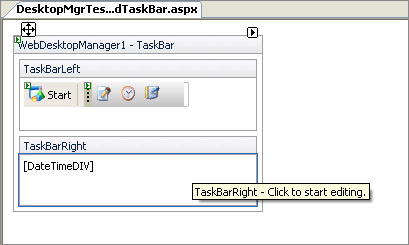
The design-time environment looks like in the following screenshot.
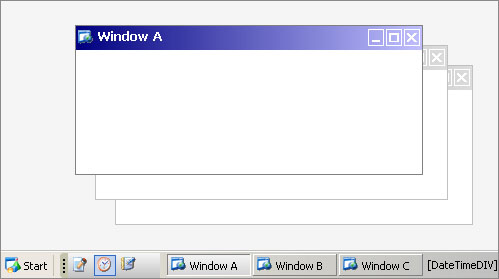
The following screenshot shows a desktop with extended TaskBar functionalities at runtime environment (Internet Explorer browser).
Styles
The following table lists all customizable styles related to the TaskBar and its sub elements.
| Style Name | Description |
| TaskBarButtonStyle | The dynamic interactive styles applied to the TaskBarWindowButton elements. |
| TaskBarStyle | The style applied to the main TaskBar element. |