


Objectives
This tutorial shows how to add a new shortcut via Client-side code. It will create an image on the TaskBar left which will invoke onclick event from client-side code to implement adding a new shortcut.
- Drag WebDesktopManager from Toolbox into a WebForm page.
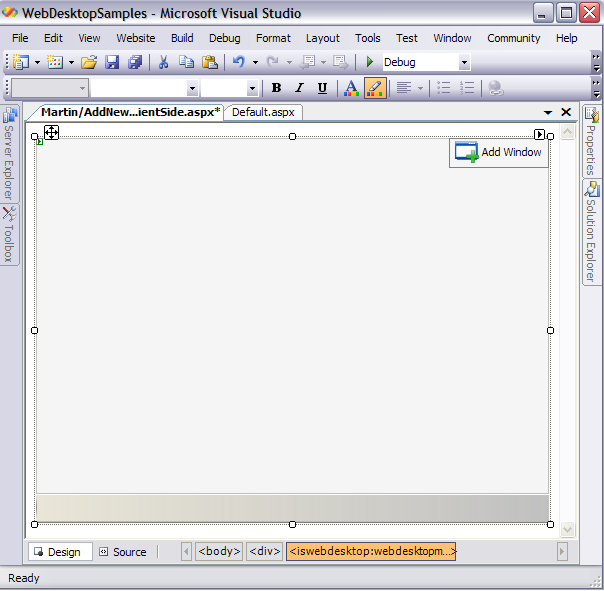
- On the upper-right corner, click the arrow next to Add Window TaskBar. It is known as WebDesktopManager Tasks.
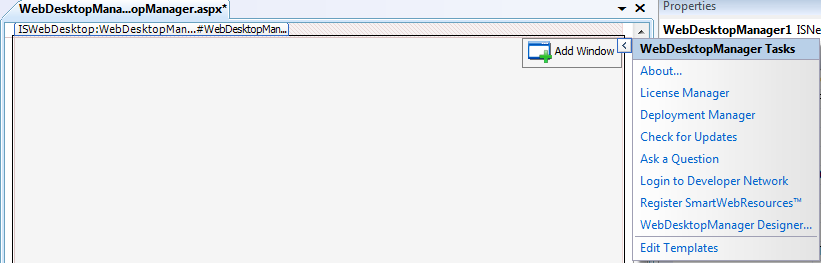
- Click Edit Templates.
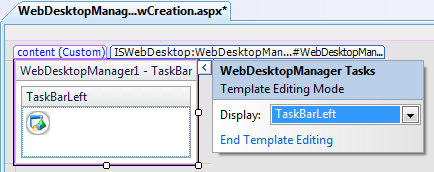
- Click the DropDownArrow and choose TaskBarLeft.
- Drag a HTML Image control from the ToolBox to the TaskBarLeft. You may customize the image from its properties according to your needs.
- In the client-side, add the following codes:
Javascript  Copy Code
<script language="javascript" type="text/javascript"> function AddShorcut() { // To add a Shortcut Icon var dm = ISGetDesktopManager(); var shortcut1 = new WebDesktopShortcut(); shortcut1.Name = "WebDesktopShortcut1"; shortcut1.Text = "Welcome to WebDesktop.NET"; shortcut1.Image = "../Images/welcome-32.gif"; shortcut1.TargetURL = "../About.aspx"; shortcut1.ToolTip = "Display Welcome Screen."; shortcut1.WindowName = "wndWelcome"; dm.ShortcutIcons.Add(shortcut1); dm.ShortcutIconsVisible = true; shortcut1.Show(); } function window::onload() { // To add a Window var dm = ISGetDesktopManager(); var wnd = dm.GetWindow("wndAboutDM"); wnd = new WebDesktopWindow(); wnd.Text = "About DesktopManager"; wnd.Name = "wndWelcome"; wnd.ControlBoxImage = "is_webdesktop-16.gif"; wnd.ContentURL = "../About.aspx"; wnd.ContentMode = "UseIFrame"; wnd.AllowMinimize = "Yes"; wnd.AllowMaximize = "Yes"; dm.Windows.Add(wnd); wnd.Hide(); wnd.Activate(); wnd.MoveToCenterDesktop(); } </script>
- Invoke AddShorcut() function from the image's onclick event.
Script Copy Code<taskbarlefttemplate> <img src="../Images/WebDesktopIconRound.png" onclick="AddShorcut()" style="CURSOR: pointer" title="New Shortcut"> </taskbarlefttemplate>
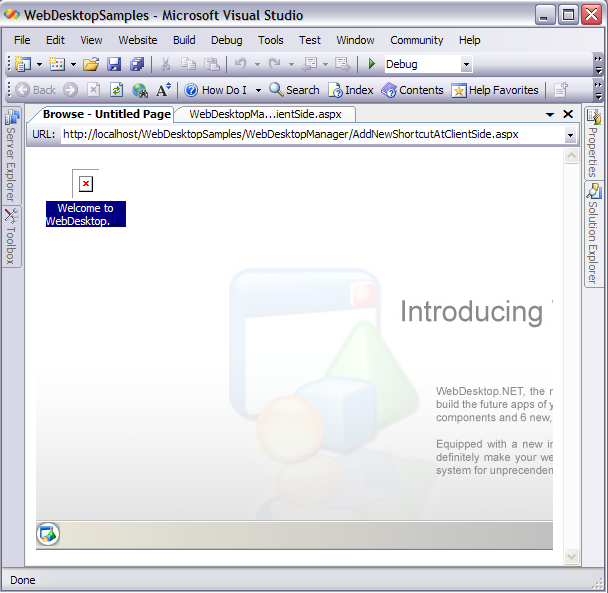
- Run the project and click the image on the bottom-left corner, which is indicated as New Shortcut.
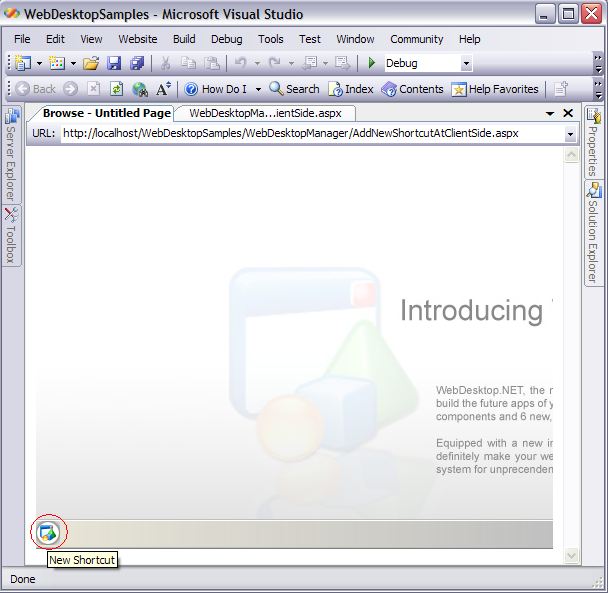
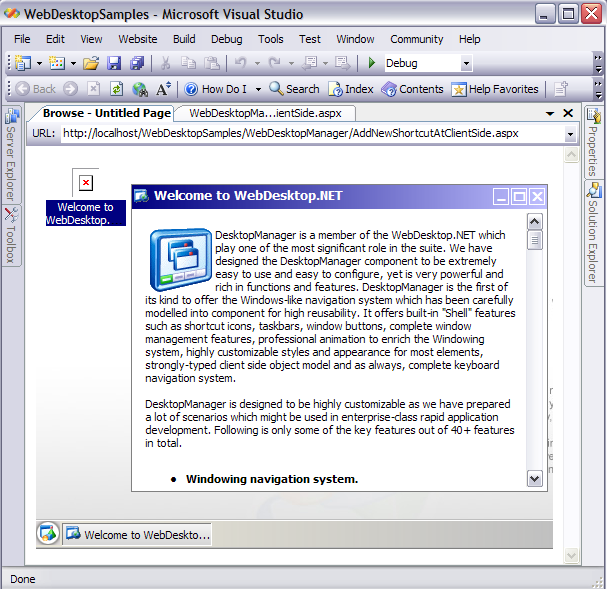
- It will display a new shortcut like the following.
- When you double-click on the shortcut icon, it will directly link to the new window created in the client-side.
 See Also
Related Articles
{Creating Simple Desktop}