


Objective
WebTab, with its true tab's behavior and its strong integration with other component, makes possible for you to customize the WebTabItem to display a confirmation box, which is made using WebDialogBox, before TabItem is closed. This tutorial will demonstrate how to make it.
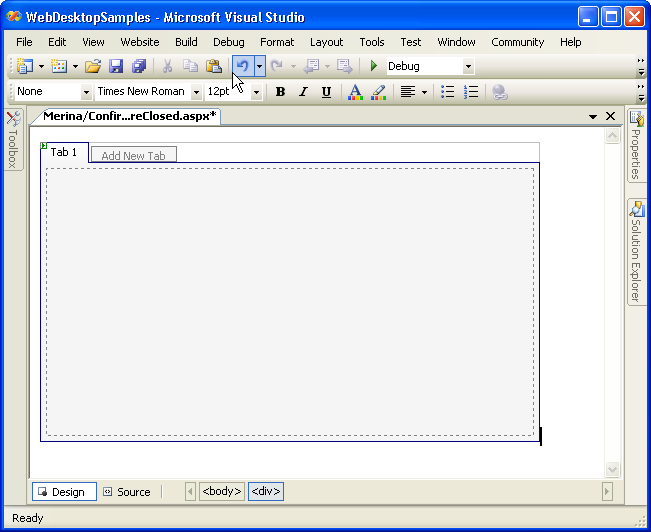
- Drag WebTab into a WebForm to create a new WebTab's instance.
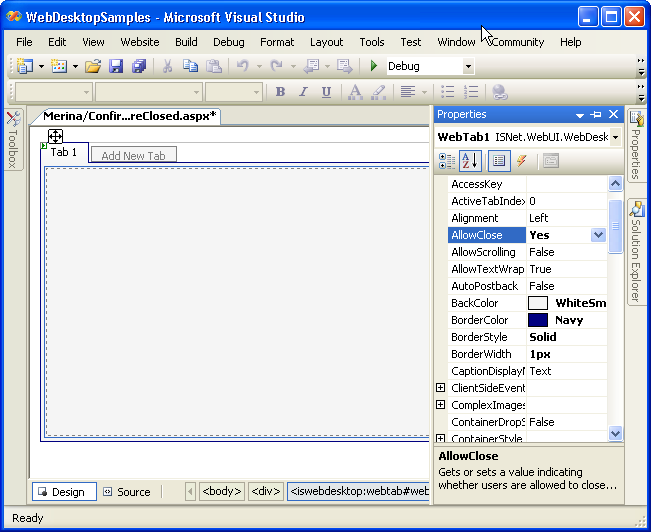
- To make the close button in WebTabItem visible, right click on the WebTab object, and choose Properties to display Properties window. Choose
"AllowClose" from the property window and set it to "Yes".
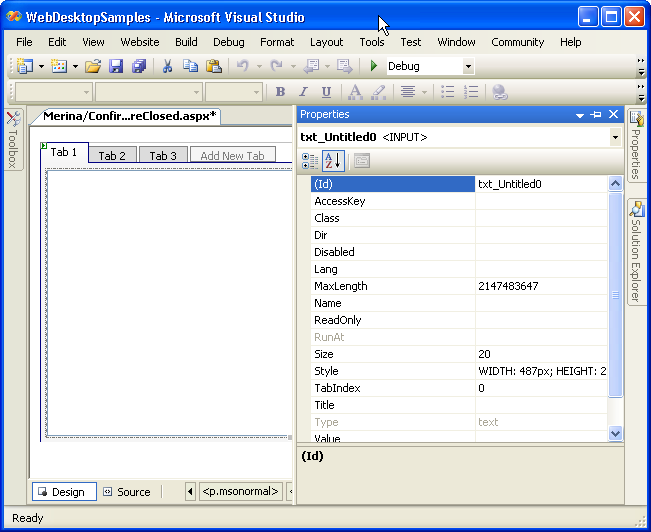
- Add a HTML Input TextBox into "Tab 1" to represent the editable area and named it "txt_Untitled0".
- Switch to your HTML page and add all of these codes.
Javascript  Copy Code
<script language = "JScript" type="text/javascript"> function OnBeforeClosed(controlId, tabItem) { if(tabItem.ForceClose) { return true; } else { if(tabItem.DocumentChanged) { var dlgBoxPrompt = ISGetObject("dlgBoxPrompt"); dlgBoxPrompt.ShowDialog(); } else { //not changed, close immidiately return true; } return false; // don't close at this time } } //This function is called when the dialog box has been closed. //Demonstrate how to obtain dialogResult and perform logic based //on the dialogResult function dlgBoxPrompt_Closed(controlId, dialogResult) { var tab = ISGetObject("WebTab1"); var activeTab = tab.GetActiveTab(); if(dialogResult == "Yes") { //perform save logic alert("Do Save Logic"); activeTab.DocumentChanged = false; } else if (dialogResult == "No") { if(tab.TabPages.length > 1) { activeTab.ForceClose = true; activeTab.Close(); // really close this time } else { // the only tab item can't be closed, so clear the textbox and focus it. activeTab.DocumentChanged = false; ClearActiveTextBox(); FocusActiveTextBox(); } } else { // cancel, don't close the tab and focus back to the textbox. FocusActiveTextBox(); } } function ClearActiveTextBox() { var tab = ISGetObject("WebTab1"); var activeTab = tab.GetActiveTab(); var textBox = document.getElementById("txt_"+ activeTab.Name); if(textBox) textBox.value = ""; } function FocusActiveTextBox() { var tab = ISGetObject("WebTab1"); var activeTab = tab.GetActiveTab(); var textBox = document.getElementById("txt_"+ activeTab.Name); if (textBox) textBox.focus(); } // This function is called when the text is changed. // Demonstrates how to obtain activetab and set tab's caption dynamically. function OnTextChanged() { var tab = ISGetObject(WebTab1"); var activeTab = tab.GetActiveTab(); if( event.keyCode != 16 && event.keyCode != 17 && event.keyCode != 18 && event.keyCode != ISKeyboardKey.LEFT && event.keyCode != ISKeyboardKey.RIGHT) { if(!activeTab.DocumentChanged) { activeTab.DocumentChanged = true; activeTab.SetCaption(activeTab.Text + "*"); } } } </script>
- Add an onkeydown event for the HTML Input TextBox so it would change the DocumentChanged properties from the WebTabItem to "True" (note: see the
related client side events above).
C# Copy Code<input id="txt_Untitled0" style="width: 487px; height: 266px" type="text"
onkeydown="OnTextChanged()" />
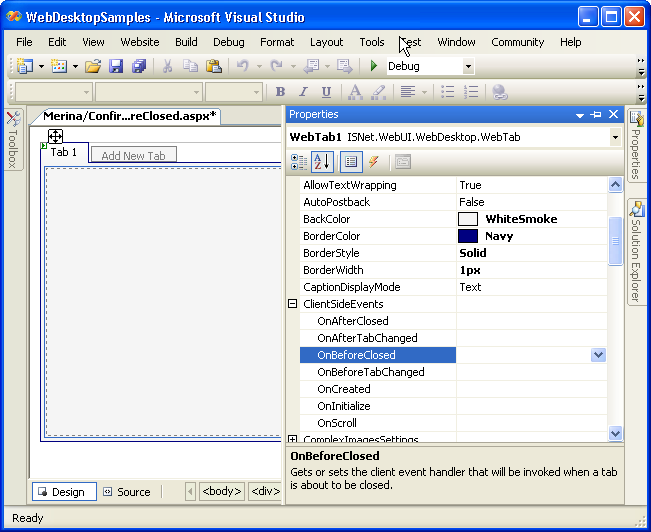
- Click on the ClientSideEvents in the WebTab's instance's properties window. Add OnBeforeClosed event handler by adding "OnBeforeClosed" event on
the property.
-
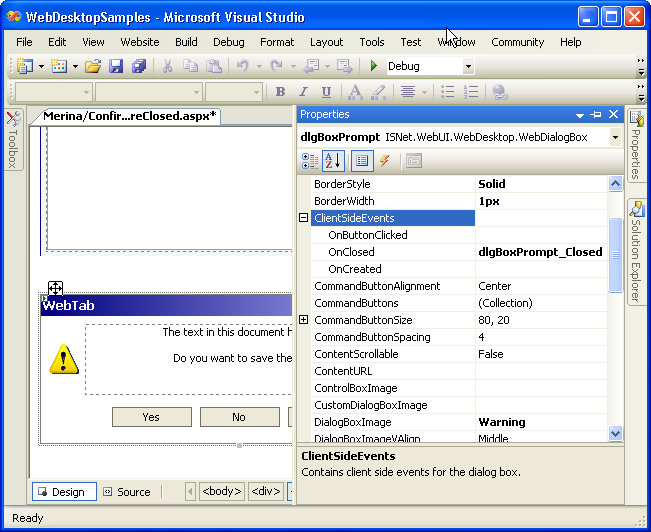
Click on the ClientSideEvents in the WebDialogBox's instance's properties window. Add OnClose event handler by adding "dlgBoxPrompt_Closed" event on the property.
-
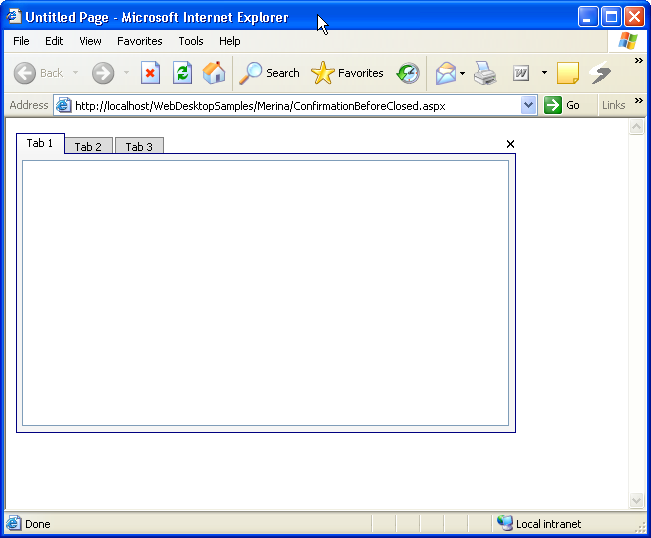
Save all the changes and build the project. When you run it in the browser you would see something like the following.
-
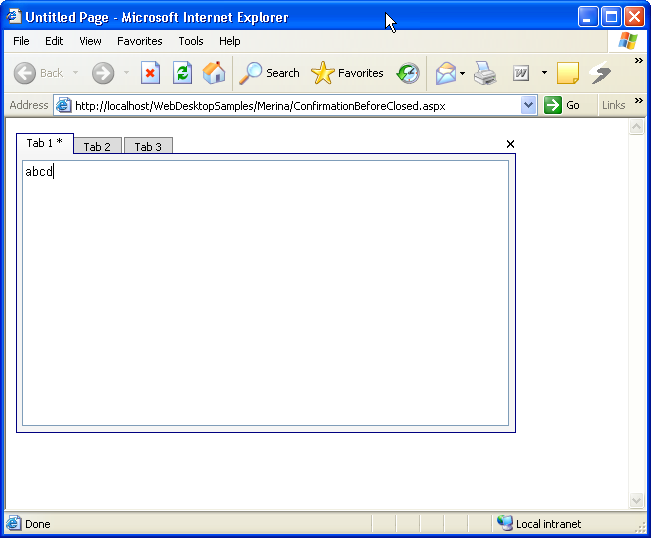
Try to input something inside the editable area, and you would see that automatically it will have a (*) indicating that page has been changed.
-
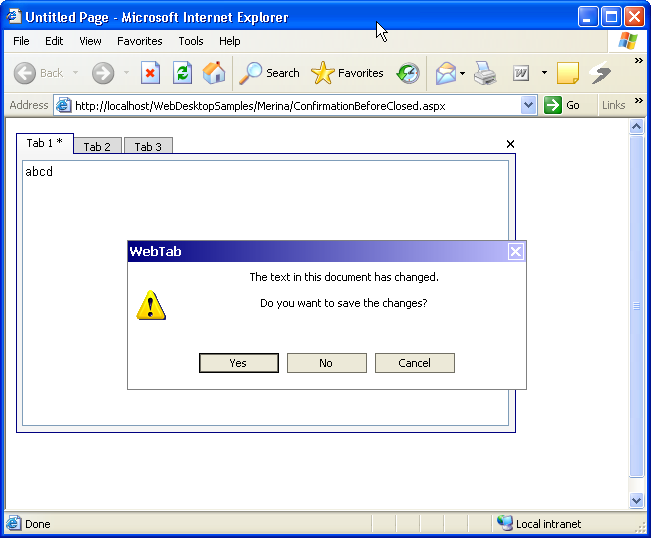
And if you try to close "Tab 1" by clicking the
 button, it will display a confirmation box asking whether you want to save the changes before you close the item.
-
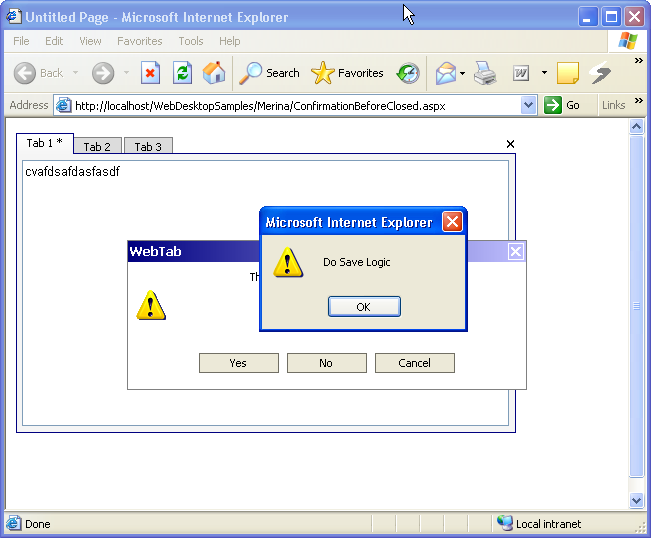
If you choose "Cancel", it will come back to the screen without making any changes. If you choose yes, it will perform the save logic.
-
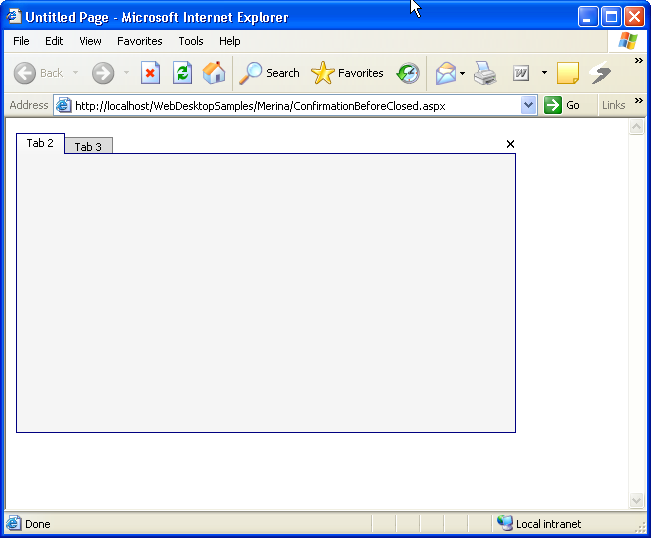
After you click on "OK", you will see that the the tab is already closed.
 See Also
Related Tutorials
{Creating Simple Tab}