


This walkthrough shows you how to change cursor effect programmatically in client side.
During this walkthrough, you will learn how to do the following:
- Set ASP.NET Panel for dragable panel and dropable panel.
- Use WebDragDropExtender to allow the dragable panel dragged to dropable panel.
 Prerequisites
In order to complete this walkthrough, you will need the following:
- Visual Studio 2005 Application.
Step-By-Step Instructions
To change cursor effect programmatically in client side.
- Launch Visual Studio.NET 2005.
- Click on File menu, then select New and click Web Site.
- Select ASP.NET Web Site in the Template box and set Location to HTTP.
- Named the Web Site and click OK.
- Right-click on Project's name and select Add New Item.
- Select Intersoft AppForm in the My Templates box and named it as Walkthrough.aspx.
- Drag 6 ASP.Net Panel to WebForm.
- Drag WebDragDropExtender instance from ToolBar to WebForm.
- Set the BackColor of each ASP.NET Panel.

- Click on WebDragDropExtender instance and press F4.
- On DragControls property, click the (collection) to open WebDragControl Collection Editor. Set which panels that will become DragControl.
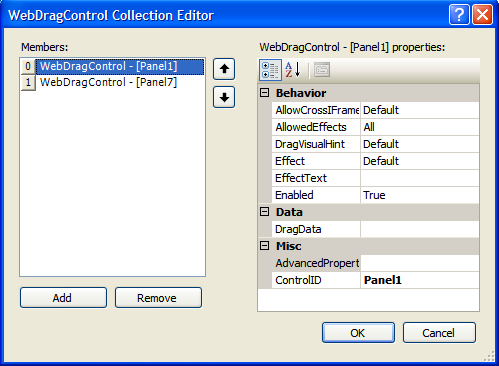
- On DropControls property, click the (collection) to open WebDropControl Collection Editor. Set which panels that will become DropControl.

- Implement OnDragOver client side event
JavaScript  Copy Code
function WebDragDropExtender1_OnDragOver(controlId, dragEventArgs, dropObject) { var WebDragDropExtender1 = ISGetObject(controlId); switch (dropObject.Element.id) { case "Panel6": dragEventArgs.Effect = ISDragDropEffects.Copy; break; case "Panel4": dragEventArgs.Effect = ISDragDropEffects.Move; break; case "Panel5": dragEventArgs.Effect = ISDragDropEffects.Link; break; case "Panel3": dragEventArgs.Effect = ISDragDropEffects.NotAllowed; break; case "Panel2": dragEventArgs.Effect = ISDragDropEffects.Remove; break; } return true; }
- Run the project. You will notice the cursor effect when trying to drag the dragable panel and drop it to the dropable panel.
