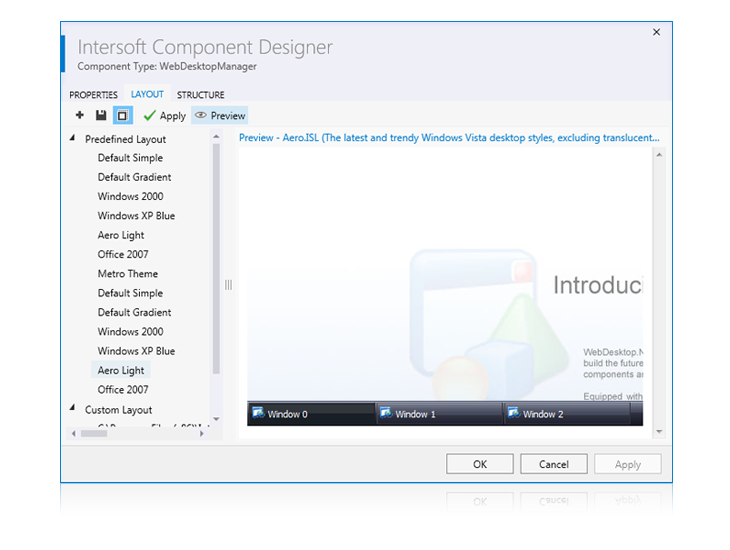
Layout Manager
The Layout Manager feature has been introduced since previous version of WebDesktop. The feature was previously implemented in WebUI.NET Framework as part of Component Designer 1.0. Layout Manager is a powerful feature to let you easily apply from a predefined style as well as save your own style and reuse it later.
 |
The Layout Manager in second generation of Component Designer has been much improved in many areas. It now has cleaner look and uncluttered user interface to bring you larger space for the preview. |
You can easily preview a style before decide to apply it by simply clicking on Preview command. The preview is performed in real time and showing the exact visual appearances as in runtime.
Change layout in WebDesktop
To change the layout in WebDesktop, you can do the following / these steps:
- Open Component Designer by right clicking on the control or by clicking the smart tag on the upper right corner of the control.
- Open the Layout Manager Tab.
- You can expand the Predefined Layout in order to choose the layout that we provide for the control. Alternatively, if you have saved your own layout, you can choose expand Custom Layout. You can view the shape of the predefined layout on the right pane by clicking Preview button.
- After selecting the layout that you want, click Apply above the predefined layout of your Layout Manager.
- The layout will be applied to your component afterwards.