


Introduction
Like the common Desktop's ToolBar, WebToolBar also implemented a Customization DialogBox. Customization DialogBox is a feature which allows the user to configure the WebToolBar(s) settings at run-time. One of benefit having this feature is the customized WebToolBar, where the user can modify it to their own requirement, which later on the structure can be saved to xml.
Enabling Customization
To enable WebToolBar's Customization, you need to set the property AllowCustomize to "True"
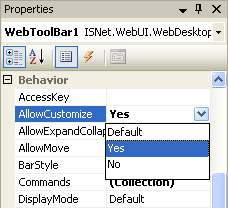
After that in the runtime you'll see arrow picture at the right side of your WebToolBar. To access it, simply click on the arrow picture.

Using Customization
By enabling Customization DialogBox, the WebToolBar can be configured at runtime. The most direct functionality is to add/remove command types of the specific WebToolBar where the command types can be customized to be shown or hidden.
The other functionalities of this Customization DialogBox, is to customize all WebToolBars which reside in the same PlaceHolderManager. Things that can be customized are categorized as follows:
- ToolBars
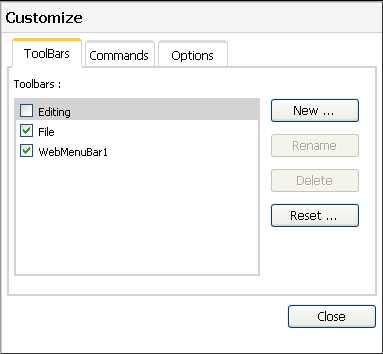
Manage the existence of WebToolBar, which one should be activated/deactivated and also ability to add/remove a WebToolBar - Commands
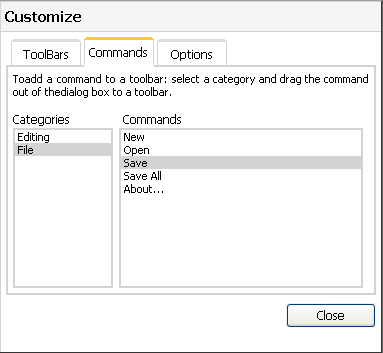
Manage (Add/Remove/Exchange) Command Types between Toolbars which reside in the same PlaceHolderManager - Options
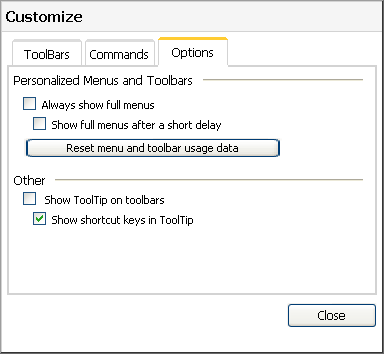
Configure Menus and WebToolBars settings.