


Introduction
WebToolBar has lots of features that might not be able to be discovered directly. WebToolBar provides some additional Designers to help you configuring the WebToolBar as easy as possible. Overall there are two additional designers which serve its own purposes, both designers focus and highlight specific details so hopefully it give you some pictures what the WebToolBar can do.
WebToolBar Designer
WebToolBar Designer is the common designer that Intersoft Component has, and also the complete designer which used to handle all property management of WebToolBar. In addition, the structure of WebToolBar can also be managed using StructureManager.
In general WebToolBar Designer is divided into two Main tabs:
- Properties
Properties Tab is use to manage all Property that WebToolBar has, it also separate some specific detail such as Client Side Events, Default Styles, and Commands into sub category.
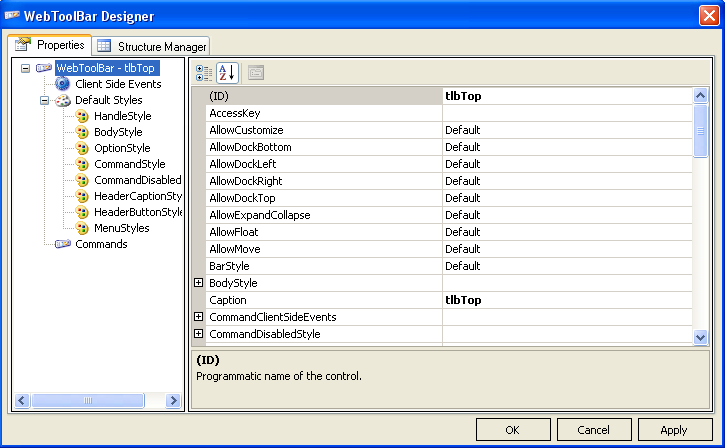
- Client Side Events
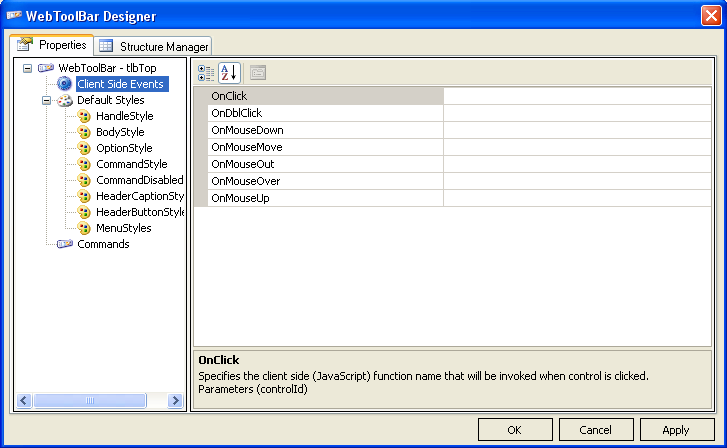
This sub category used to manage WebToolBar Client Side Events.
Note: when using the WebToolBar Designer you can not use the automatic function generation, to generate WebToolBar ClientSide Events.
-
- Default Styles
This sub category used to manage all the WebToolBar Default's Styles. -
Commands
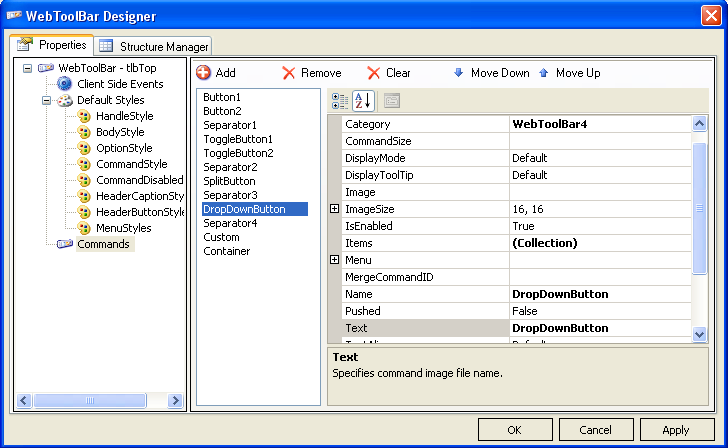
This sub category used to manage WebToolBar's Command Type. You can add/remove/re-order the command and also manage the properties.
- Default Styles
- Structure Manager
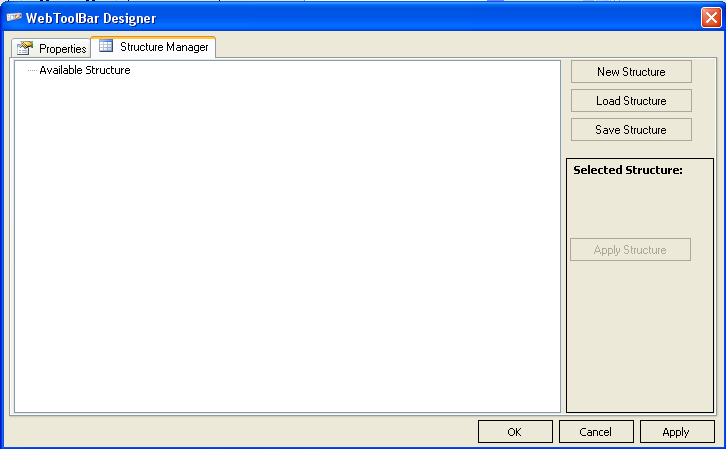
Structure Manager is use to manage the structure of WebToolBar, so you can save / load the structure for later used.
WebToolBar Quick Designer
WebToolBar Quick Designer is a more specific Designer, it focus on properties that related to WebToolBar Features.
In general WebToolBar Quick Designer is divided into three Main tabs :
- Bar
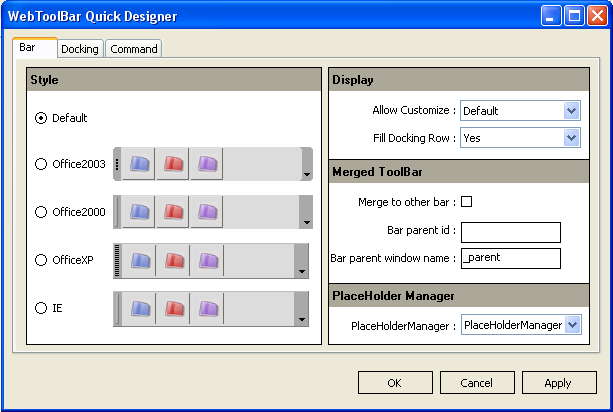
Bar Tab focus on properties that relate to WebToolBar's Features.
-
-
Style
You can select predefined style that WebToolBar provide - Display
This category focus on WebToolBar runtime Display.
You can configure whether the WebToolBar can have Customization DialogBox or not.
In addition you can also set the WebToolBar whether it will fill the docking row or not (Using True Fill Technology) - Merged ToolBar
This category focus on WebToolBar merging capability. You can configure the merging settings from this designer. - PlaceHolderManager
This category focus on where the WebToolBar should be place on.
-
- Docking
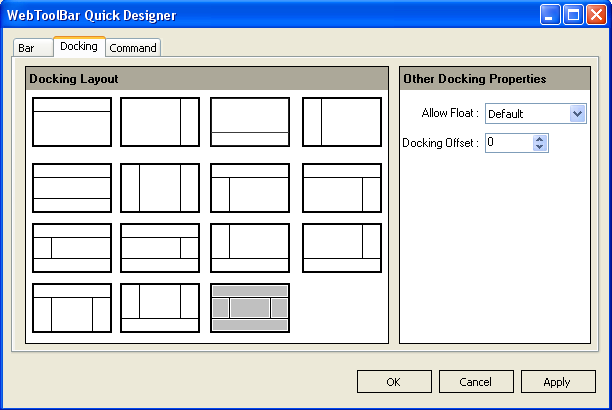
Docking section focus on the Docking Layout configuration. This docking layout informs the WebToolBar the position to where it can be docked to.
- Command
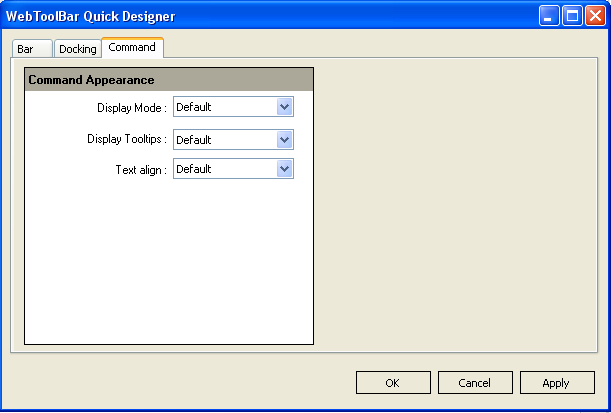
Command Tab focus on Command Type's Appearance, you can set the General settings for all CommandTypes of WebToolBar. The settings include Display Mode, Display ToolTips, and Text Alignment.
Visual Menu Builder
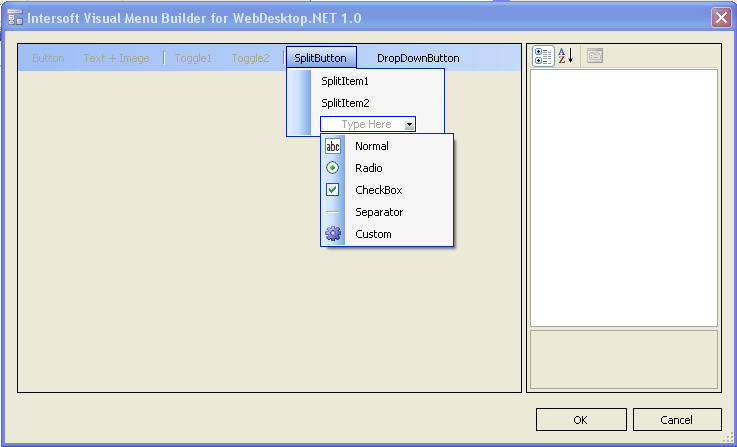
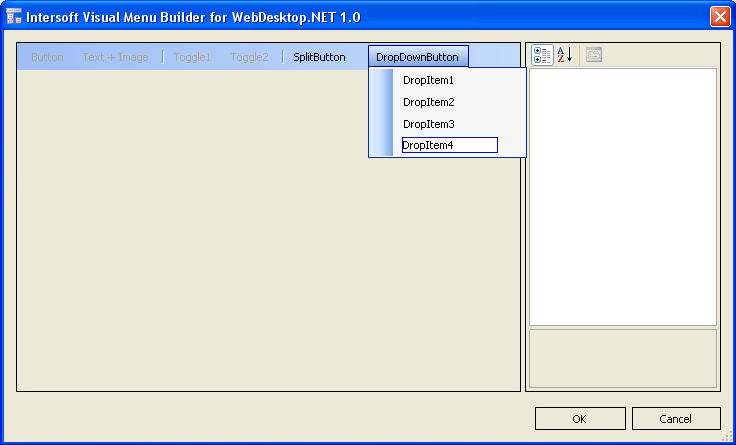
Visual Menu Builder is another Designer that integrated to WebToolBar, it used to help you managing WebToolBar CommandTypes of type DropDown Buttons and Split Buttons.
Previously you need to go deep through Properties to manage the menu items. This Designer give you some visualization to manage DropDown Buttons and Split Buttons menu items you can manage and see the result directly in the designer.
For more information see Visual Menu Builder Topic
 See Also
Related Article
Visual Menu Builder