


Splitting two simple cells
Objectives
Adding a Vertical WebSplitter between 2 cells, simply by adding a new cell between the cells you want to split and drag and drop the WebSplitter control into that cell.
- Presume there's already two cells of column you want to split
Make sure the table's style attribute has: "table-layout: fixed".
<TABLE id="Table1" style="TABLE-LAYOUT: fixed" height="300" cellSpacing="0" cellPadding="0" width="300" border="0">
...
</TABLE> -
Add another cell between the cells you want to split.
It does not need to specify any attributes because this cell only used as a placeholder of the WebSplitter control. Any settings are on the control itself.
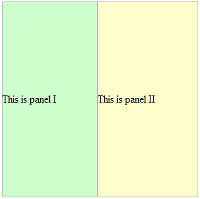

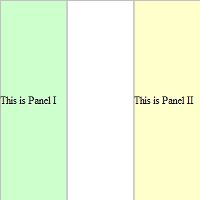
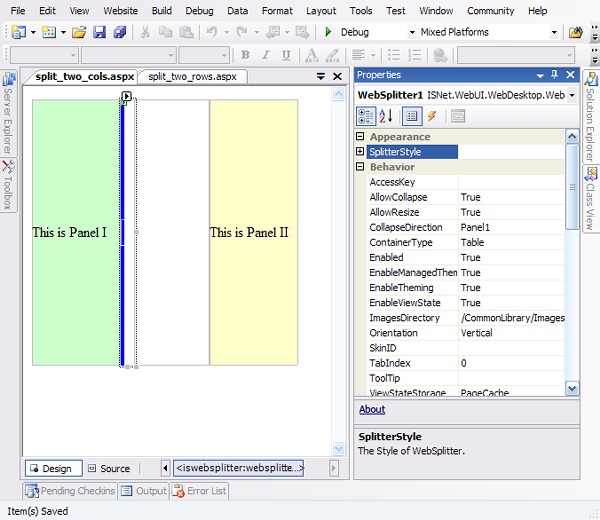
- Drag and drop the WebSplitter from the toolbox control into the cell you have just created
- Since the orientation property's default value is set to vertical, there is no need to change it. Simply customize other properties to set the control's behavior and design.
- View in browser or run the page.
|
|
Splitting two columns with rowspan
Objectives
Demonstrate the WebSplitter feature of supporting colspan/rowspan by adding a Vertical WebSplitter between 2 columns using rowspan.
 |
Use nested table to create a complicated layout of page instead of using colspan/rowspan |
- Presume there's already a table using rowspan
<TABLE id="Table1" style="TABLE-LAYOUT: fixed" height="300" cellSpacing="0" cellPadding="0" width="300" border="0">
<TR><TD rowspan="2" bgColor="#ccffcc">Panel I</TD>
<TD bgColor="#ffffcc" width="30%">Panel IIa</TD>
</TR>
<TR><TD bgColor="#ffcc66">Panel IIb</TD></TR>
</TABLE> -
Add another cell between the two columns, so the html code looks like this:
<TABLE id="Table1" style="TABLE-LAYOUT: fixed" height="300" cellSpacing="0" cellPadding="0" width="300" border="0">
<TR><TD rowspan="2" bgColor="#ccffcc">Panel I</TD>
<TD rowspan="2" style="Width: 40px"></TD>
<TD bgColor="#ffffcc" width="30%">Panel IIa</TD>
</TR>
<TR><TD bgColor="#ffcc66">Panel IIb</TD></TR>
</TABLE> -
Drag and drop the WebSplitter from the toolbox control onto the cell that you have just created, and customize the style as you like, illustrated in the below image:
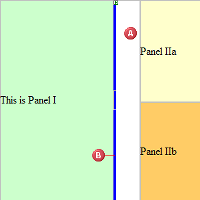

Cell of the WebSplitter (WebSplitter placeholder) 
Vertical WebSplitter 
You may resize the cell of the WebSplitter in design time as it will not be affecting the runtime layout. The size of the WebSplitter is set from the WebSplitter's property of Size -
View in browser or run the page.