


Objectives
WebToolBar can also be set in floating mode.
This tutorial will show you how to configure a floating mode WebToolBar.
Following are steps to add item to WebToolBar and change the command type.
- Drag PlaceHolderManager to WebForm.
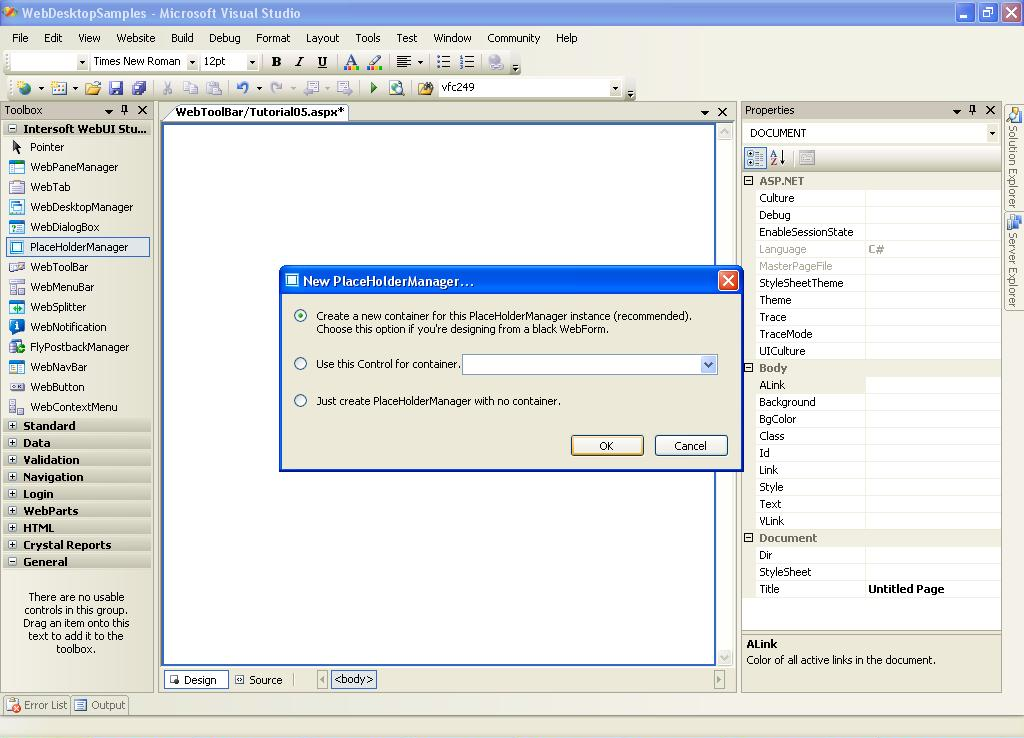
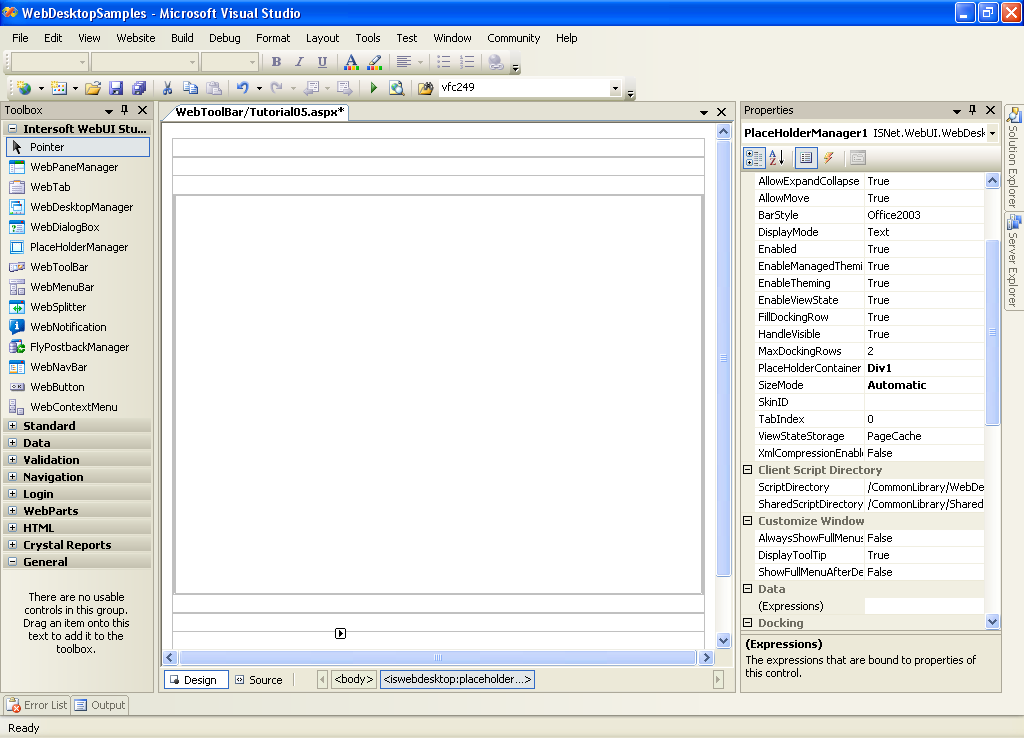
- Drag First WebToolBar to PlaceHolder Manager.
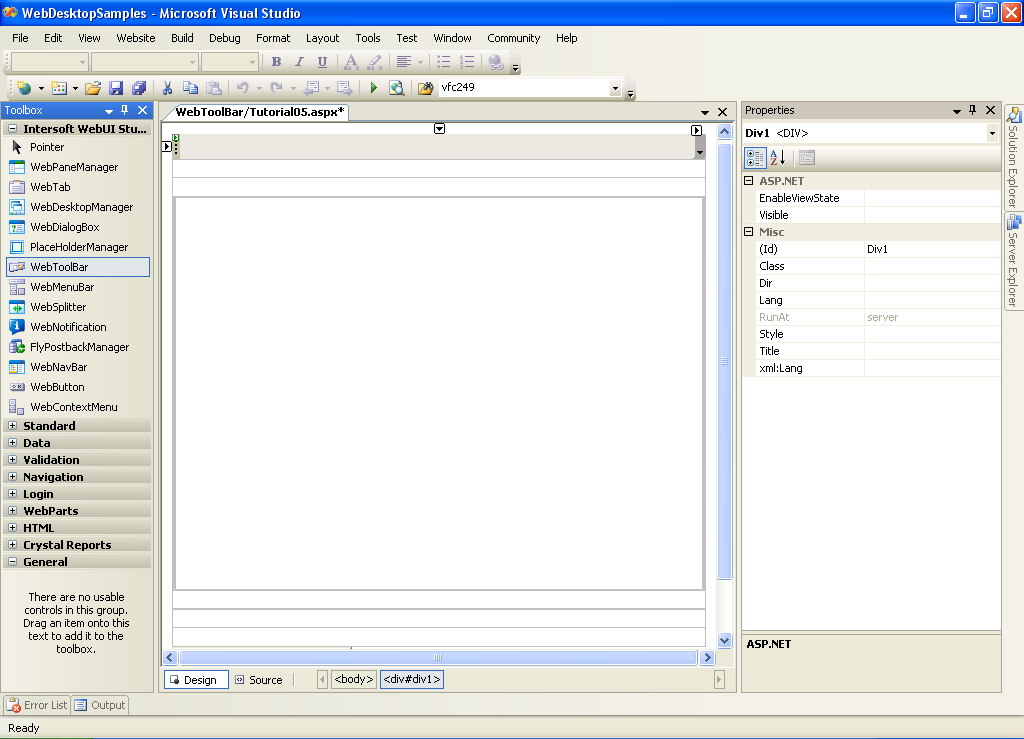
This will place the WebToolBar to Top Most Row in PlaceHolder manager, to learn how to change the docking position see "Changing Toolbar docking at design time" Tutorial.
- Open WebToolBar's Property Window.
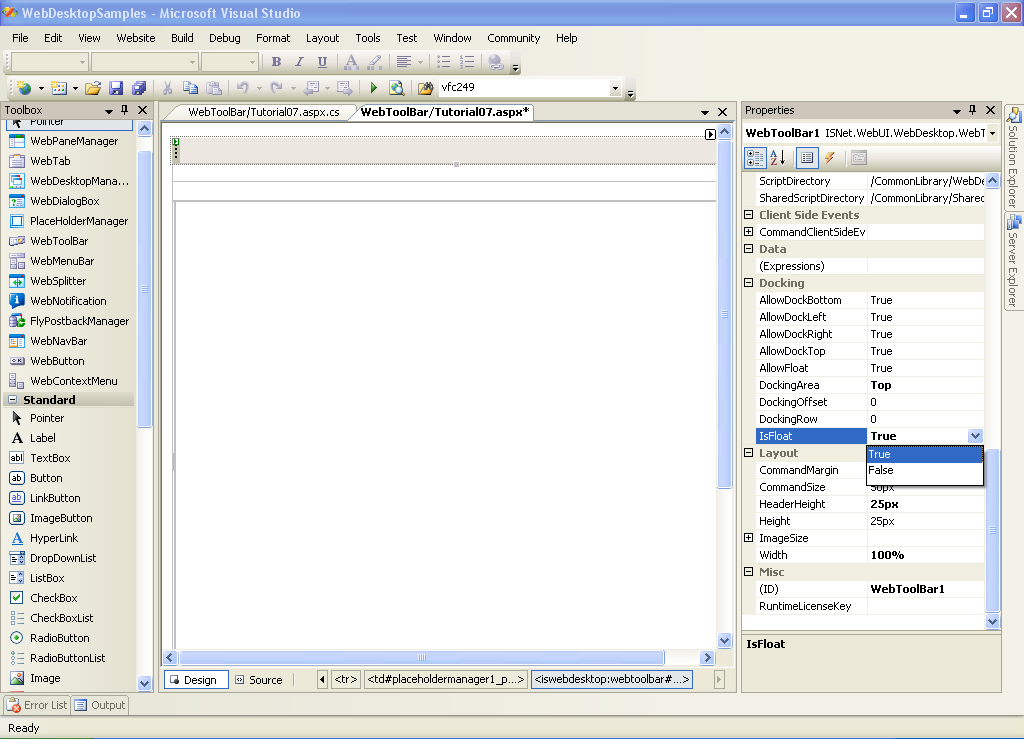
- In Docking Property Set, set AllowFloat's Property to True.
- Set isFloat's Property to True if you want the WebToolBar is on Floating Mode from the start.
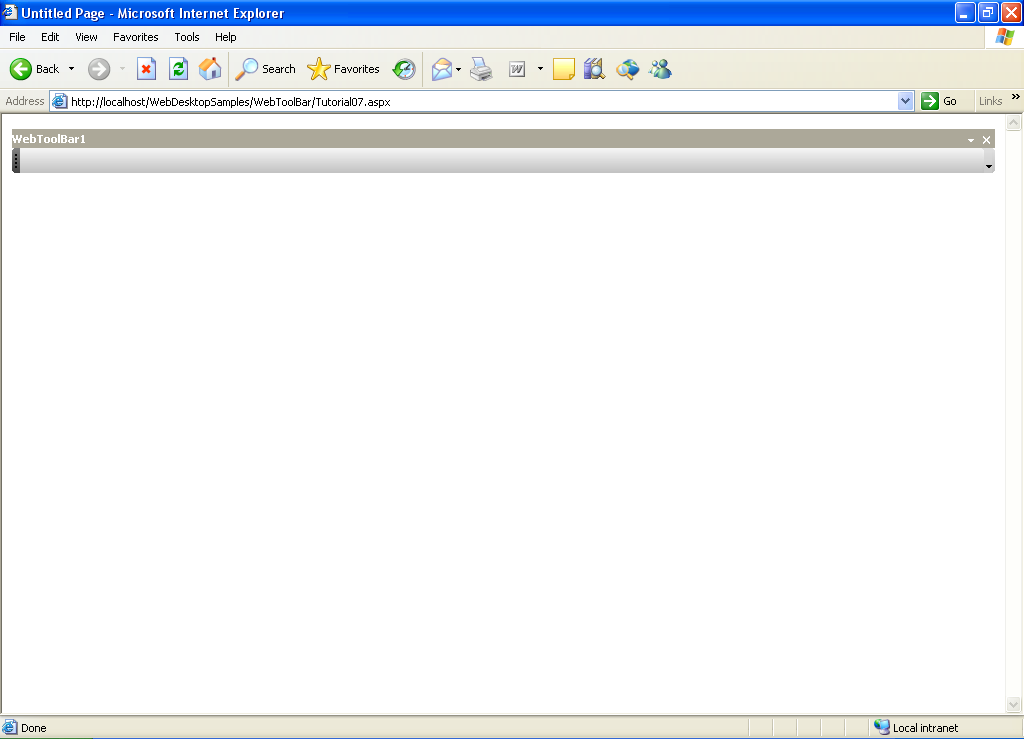
- Run the project and you should see something like this.
 See Also
Related Articles
{Creating Dockable Toolbar}