


By default, when a WebDialogBox is shown, the background of the parent window will be blocked in the way that it does not accept mouse clicks, which simulates desktop application. The background is set to Transparent by default, and is not customizable in the previous version.
 |
In this new version, you can now customize the background color of the shadow, as well as the transparency opacity. These new additions allow you to dim out the background screen to let end users easily focus on the dialog box. |
To set the background shadow color, set the ShadowColor property to a valid color. To change the transparency opacity, set the ShadowOpacity to a valid transparency level. The minimum is 0 which means opaque, and the maximum is 100 which means fully transparent. The default value for the opacity is 50.
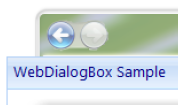
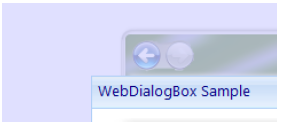
The following illustration shows the comparison between fully transparent background and dimmed background.
Without Shadow Color (Fully Transparent) With Shadow Color set to Gray, and Opacity set to 50%
 See Also
Related Sections
Direct Control Access in Template
Keep Visible On Scroll
Show Dialog with Animation
{Modeless mode}
{Vista-style animation}
Other Resources
{What's New in 2.5}