


Objective
Configure the style of a specific page or control. It is recommended to read the previous tutorial (Configuring Styles for Web Application) for better understanding of using the WebStyleManager.
More Information
Continuing from previous tutorial we are now going to configure a style for a specific page and the controls within.
-
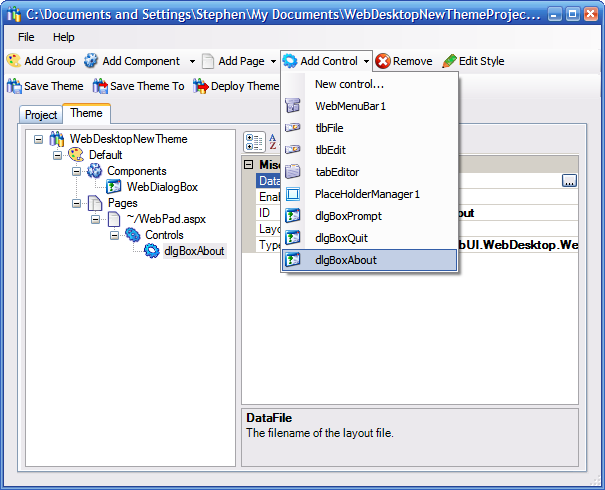
Click on the ~/WebPad.aspx page node and select the dlgBoxAbout control from the Add Control DropDownButton.
-
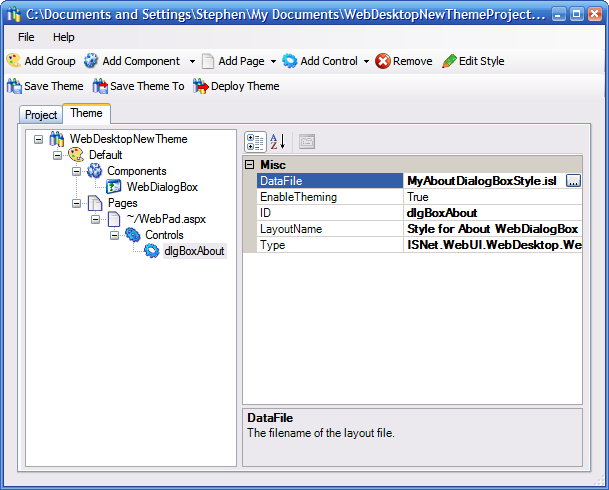
Enter the DataFile file name for the new layout. The DataFile here is the file name of the layout file (*.isl) of the control. You can select an existing layout file or just enter a new file name. If use an existing layout file, the file will be copied to the WebDesktopNewTheme directory. On the other hand, if you enter a new file name a layout file will be created, also in the WebDesktopTheme directory.
-
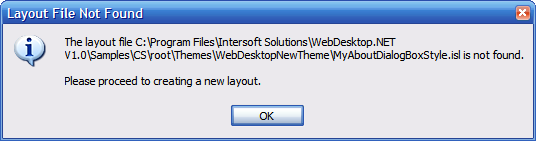
In this case, enter a new layout filename 'MyAboutDialogBoxStyle.isl' and click Save. Then click the Edit Style button to start editing the style. A dialog box will show up and informs that the layout file is not found and therefore we are going to create a new layout. Click OK to proceed.
-
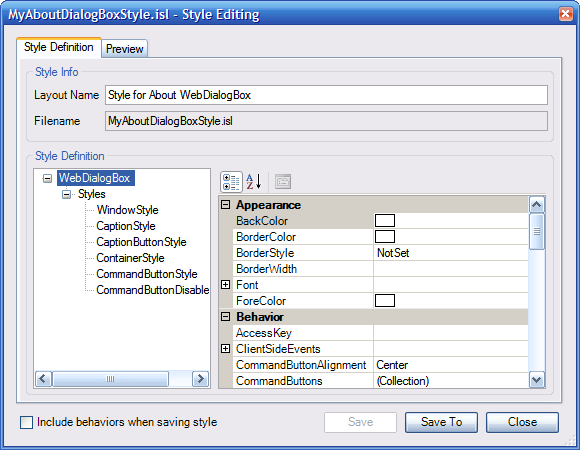
The style editor window is displayed and we can start editing the new style. Modify some styles and then click the Save button so the changes can be reflected on the preview.
-
Click the Preview tab to preview the changes.
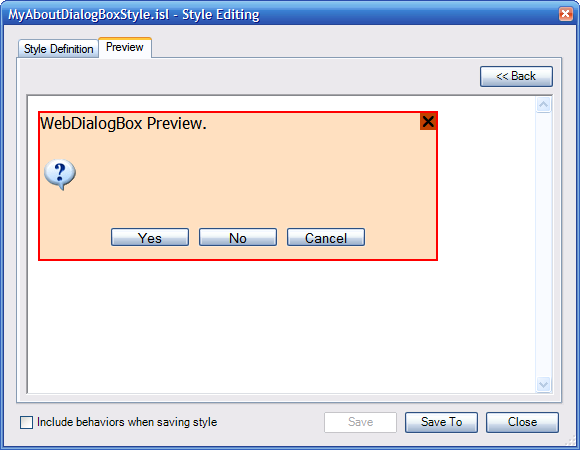
-
After previewing the style click the Close button. Now you can start deploying the theme project to your Web application. The next tutorial (Deploying Theme Project) will show you how to deploy a theme to your Web application.