


Introduction
Using Visual Menu Builder to build a WebContextMenu is similar to using it to build the other WebMenu components (WebContextBar and WebToolBar). However, there are some significant differences between them. A WebMenuBar in the Visual Menu Builder is represented by the menu bar whereas a WebContextMenu is represented by the "Context Menu" menu item. Since the WebMenuBar implements the IBar interface, it has a visual representation of a bar.
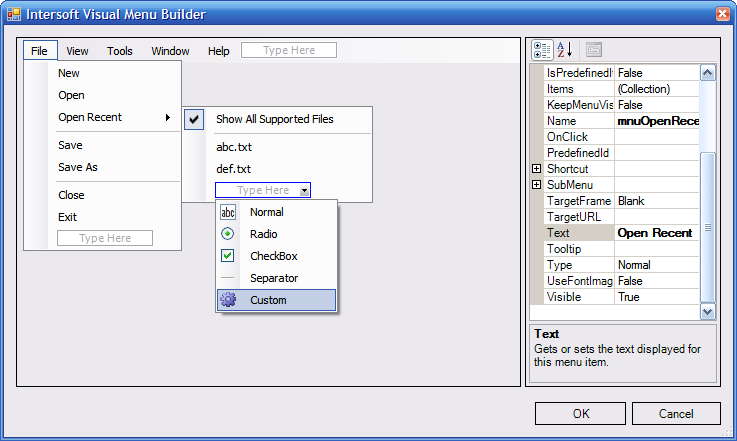
When you open the Visual Menu Builder by right-clicking the WebMenuBar you will be shown the designer as below (the menu items shown here are for example):
More Information
In Visual Menu Builder a WebMenuBar object is represented by the menu bar. Clicking on the menu bar will have the property grid to show all the properties of the WebMenuBar object. A menu type selector will also be added to the end of the menu item collection. You can add menu items to the WebMenuBar by typing text into the "Type Here" TextBox or simply select a menu type from the menu type selector dropdown.
Note that menu items that were added to the bar are of MenuCommand type and menu items that were added as its sub menu item are of WebMenuItem type. Both this types share very similar properties with the exception the MenuCommand type is specifically used for menu items on the Bar.
Clicking on the created menu item will show up its properties in the property grid and you can change the values from here. As you might have noticed, only a Normal menu item type can have sub menu items or children. To add a sub menu item simply click on the normal menu item and then a type selector will show up and enable you to add a new sub menu item. It is not recommended to add sub menu items using the property grid as the added menu items will not be reflected on the visual representation of the menu items. There are some properties that will be reflected on the visual representation upon changes: Checked, Enabled, Text, Type and ShortCut.
You can also change a menu item's text by clicking the menu item, or double-click if the menu item has not gotten focus (indicated by a solid border). Changing the menu item Text, however, will not change the menu item Name.
After finishing creating or modifying the WebMenuBar object click OK to apply changes to your object, or click Cancel to revert back to the object prior to changes.