


Using Project Editor
The Project tab represents a single project XML file (*.xml) or a deployed project file (istheme.config) which is used to configure Intersoft WebUI.NET components look and feel throughout the entire Web application.
One project file can only contain configurations for one Web application. You can create as many themes as possible within a project but only one can be selected for use at a time.
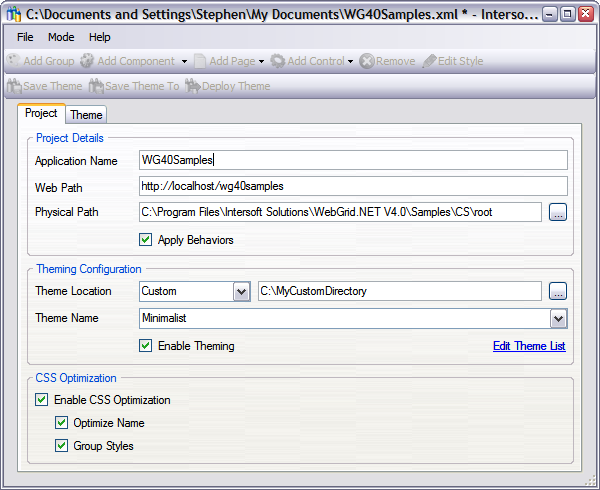
Below are the details of each field on the Project tab:
-
Application Name
The name of the Web application to which you are applying a theme. This is optional but it is recommended so the Web application can be identified easily.
-
Web Path
The URL of the Web application.
-
Physical Path
The physical path that points directly to the web application's root directory in the drive. This is automatically filled when creating a new project after the Web path has been specified with the condition the Web path is pointing to application that is is located in the same machine and the virtual directory has been set up in the IIS.
-
Apply Behaviors
Check this to indicate whether the Theme Manager should use the defined behaviors -that resides in the .ISL file- for the controls when it is available.
-
Theme Location
The location in which all themes and the List.xml file would be put together. There are three options available:
- Global
- This would be the "CommonLibrary\Themes" folder under the "Program Files\Intersoft Solutions" folder.
- Private
- Private location would be PhysicalPath + "\Themes".
- Custom
- Custom specified location, e.g: C:\MyCustomDirectory.
-
Theme Name
The name of the selected theme configured for this project. You can select which theme to use from here.
-
Enable Theming
Enable theme to be applied to the Web application.
-
Edit Theme List
Clicking on this link will bring up a dialog box where we can edit the theme list. The theme list is stored as List.xml that resides in the Theme Location folder.
-
Enable CSS Optimization
Check this to enable the CSS Optimization. If this is unchecked, none of the optimization methods (Optimize Name and Group Styles) will be applied regardless of their values.
-
Optimize Name
Check to optimize the style name. When this is enabled, it will convert a long style name from, for instance, ".WebGrid1-LayoutSettings-DropDownStyle-Normal" to ".BS12345", thus reducing the size of the generated CSS style.
-
Group Styles
Check to enable grouping style definitions that have similar values.
After filling all the fields above we are ready to configure the theme for our Web application in the Theme tab.